
Accounting
Chart of Accounts
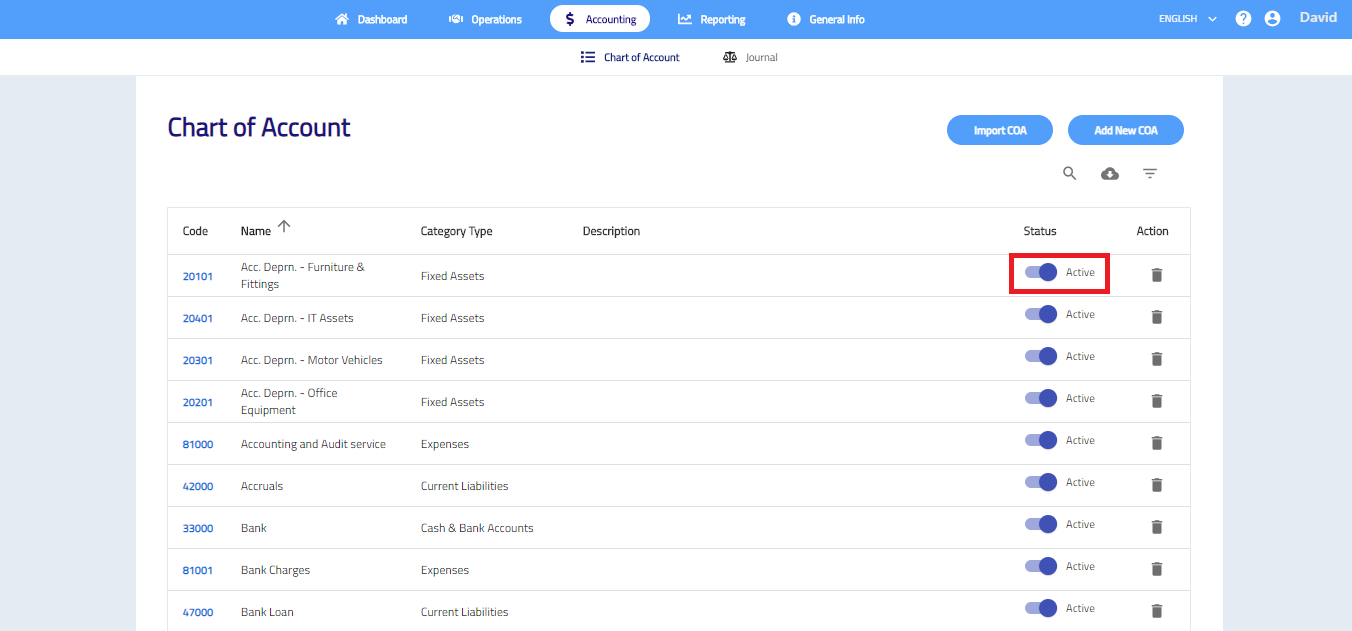
Chart of Account shows list of accounts for transaction double entries. You may import and manage the chart of accounts here. All accounts can be used when creating customer, supplier, cash transactions and journal entry.
Note: For beginning balance, you need to go to User Profile > Advanced Configuration > Accounting > Opening Balance.
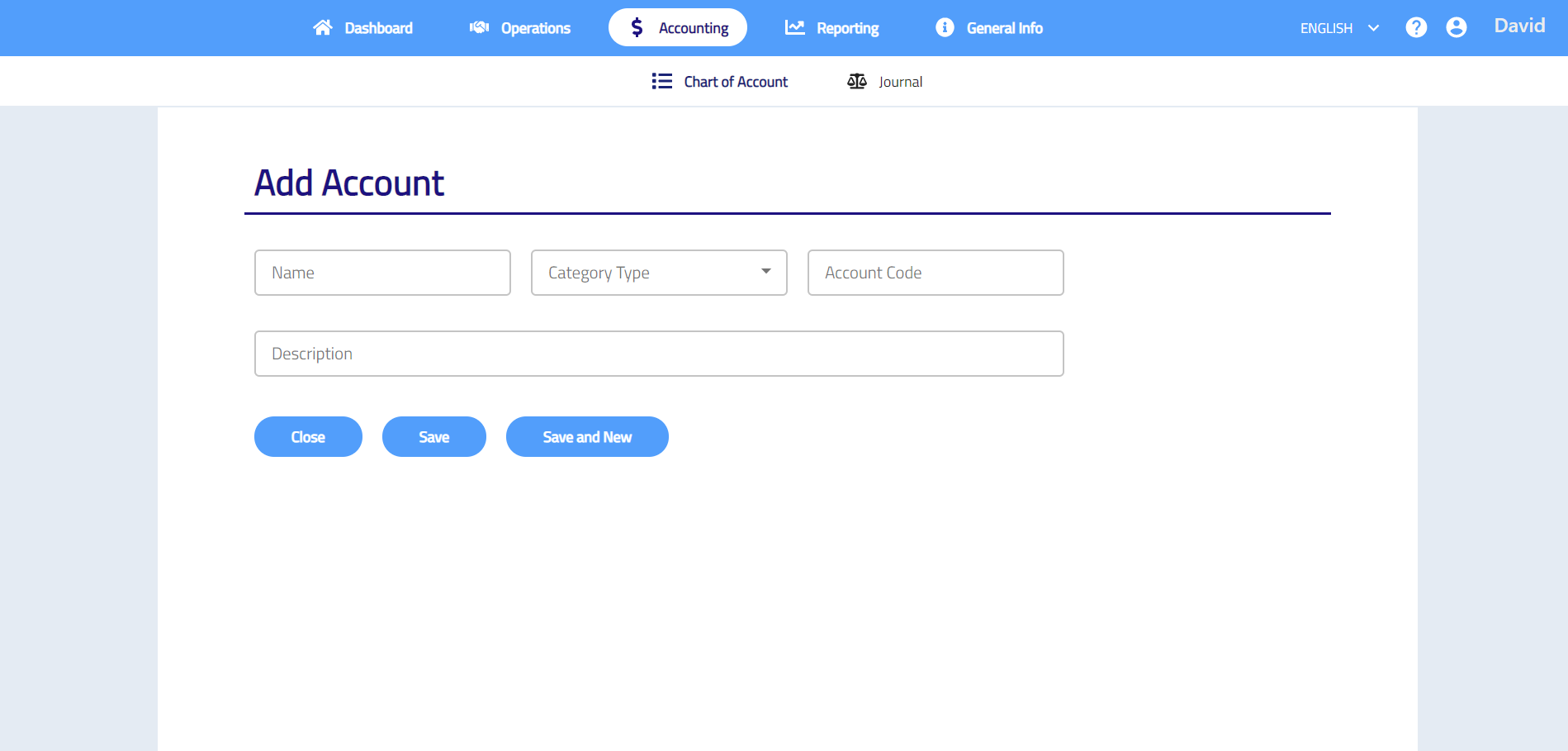
Add new Chart of Account
- Go to Accounting > Chart of Account > Add New COA.
- Enter account name, account code and description and then select category type.
- Click Save to save new account or click Save and New to continue add new account.
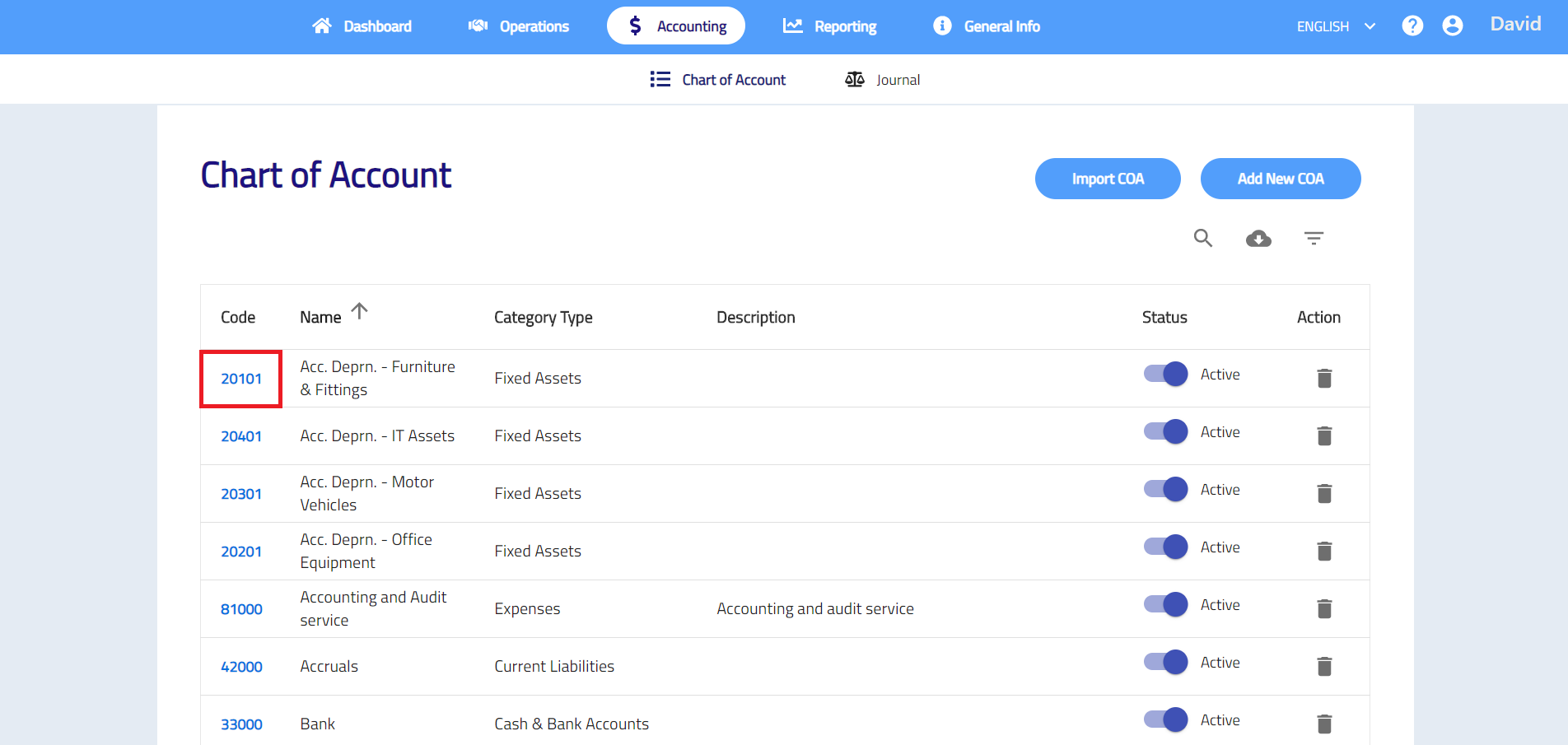
Edit Chart of Account
- Click on the Code that you want to edit.
- Click the column and change the details that you want to edit.
- Click Update button > Yes to save your changes.
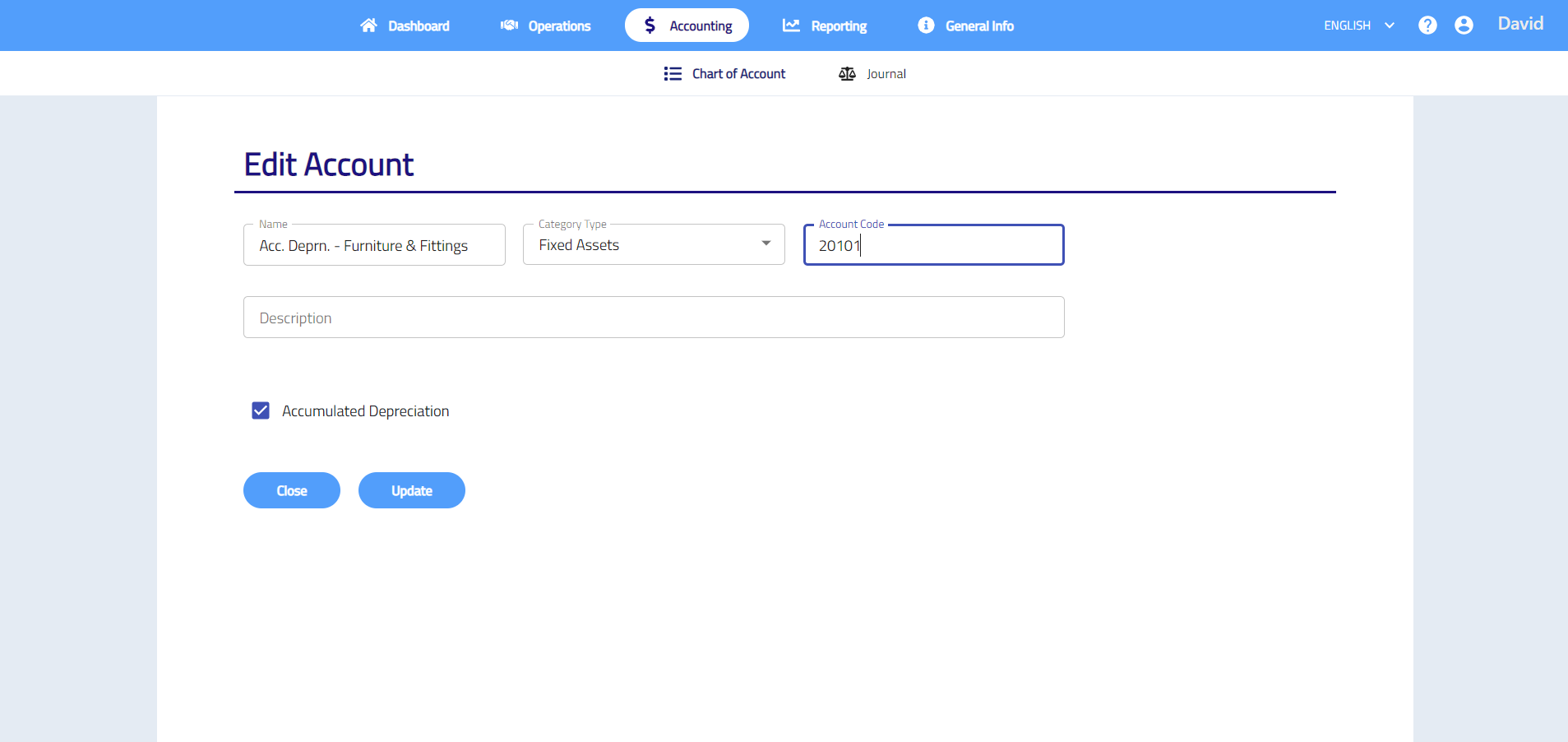
Note: Duplicated account codes will not be allowed.
Delete Chart of Account
- Click on
 .
. - Click Yes to confirm delete.
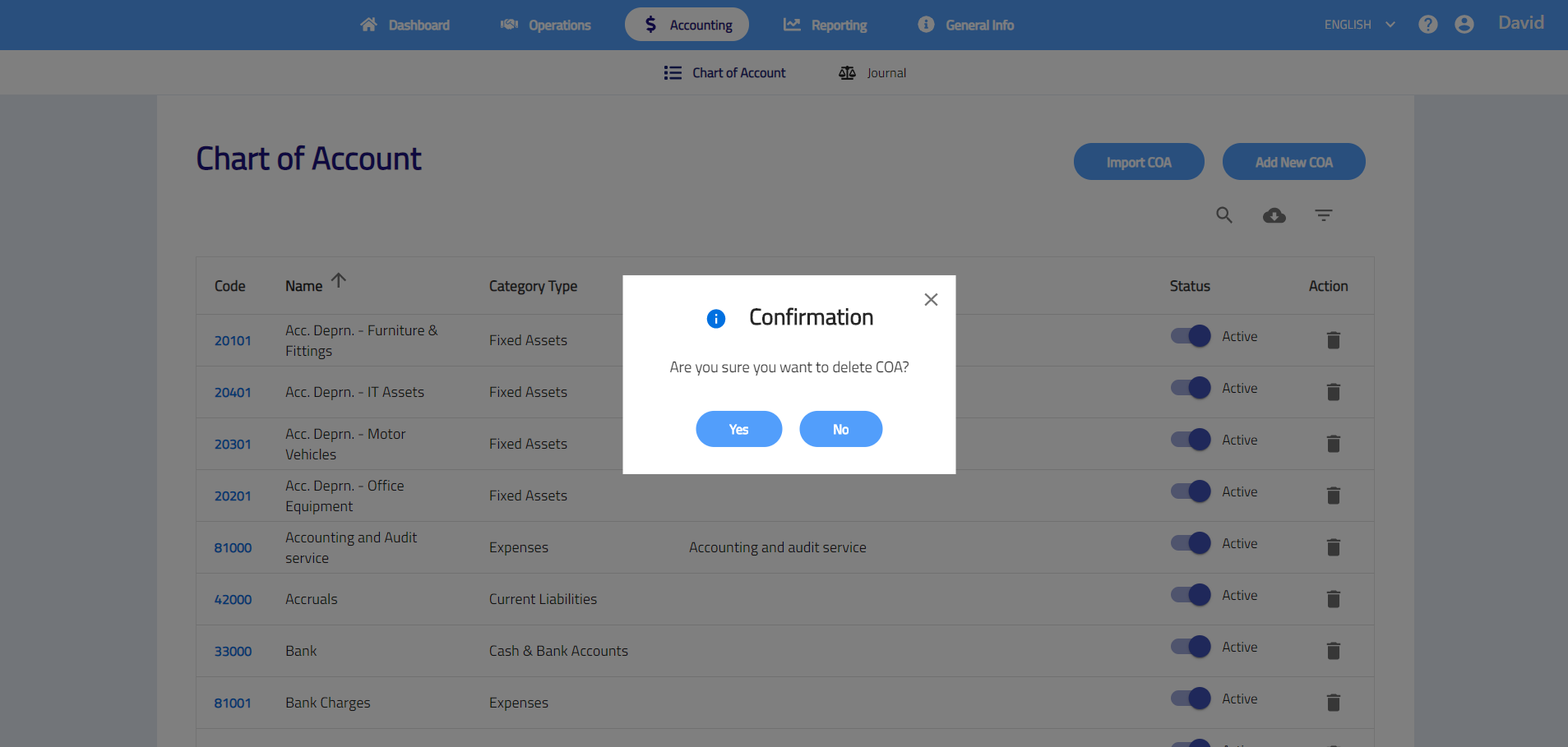
Note: You may set the COA status to inactive if you are not using it.
Import Chart of Account
- Click on the Import COA button.
- Click Download Template to download the template and enter the details by following the template given.
- Save the template in .csv(comma delimited) file and upload the file and then click Upload.
- The system will show “uploaded successfully” if data and file format are correct.

Download Chart of Account
Click the  to download chart of account list

Journal Entry
Journal entry is to create manual journal transactions such as accrued transactions, bank transfers or contra transactions. It can also be used to view all your transactions double entries.
To view all journals, please follow these steps: Accounting > Journal > View All Journals.
Add new journal
- Go to Accounting > Journal > Add Journal.
- Complete the journal by selecting date and account, enter the reference. name, description debit amount and credit amount. Click
 to select the project, branch and salesperson and enter the tax reference if needed.

- If necessary, add the Reference, Discount, Memo and attach document or any file by clicking on the attachment box on the bottom left corner. This can be used to store any related supporting documents for future references.
- Click Save to save new journal. Click
 and select DRAFT to save as draft or select SAVE & NEW to save multiple journal consecutively.
Action
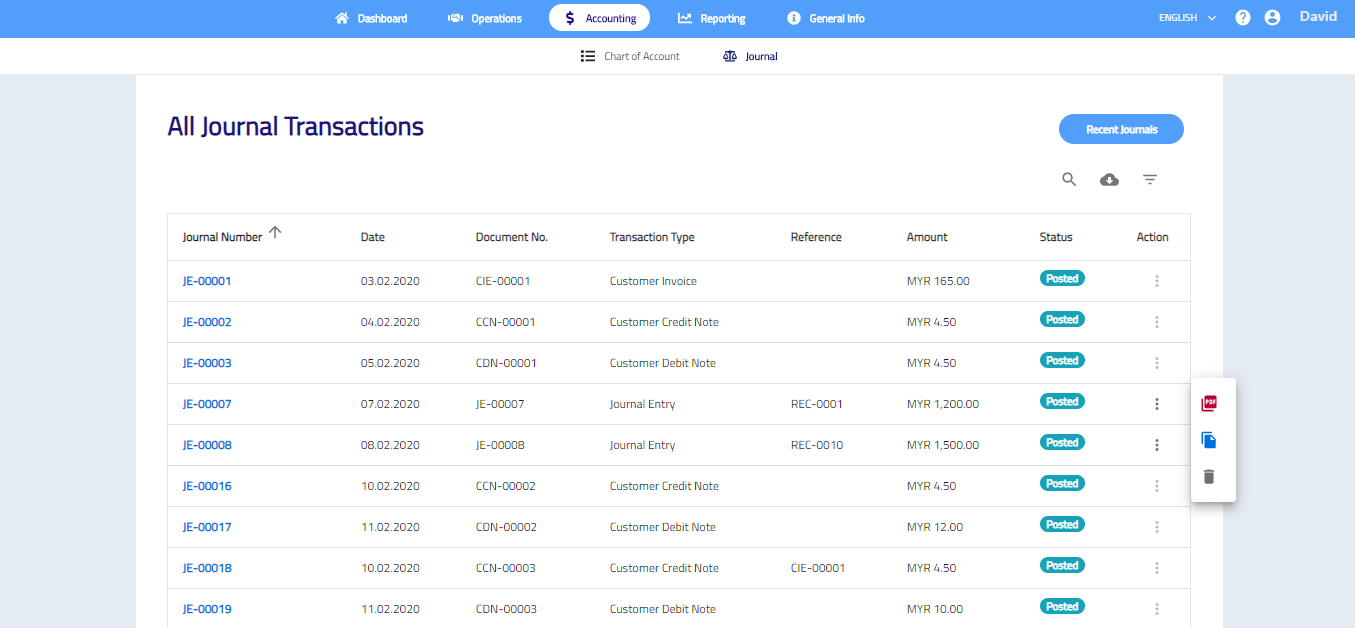
Click  to select action.
The action includes:
- Generate journal voucher PDF
- Duplicate journal
- Delete journal
Note: Only journal entry can access action.
Edit journal
- Go to Accounting > Journal.
- Select the journal number that want to edit.
- Click
 to edit transactions.
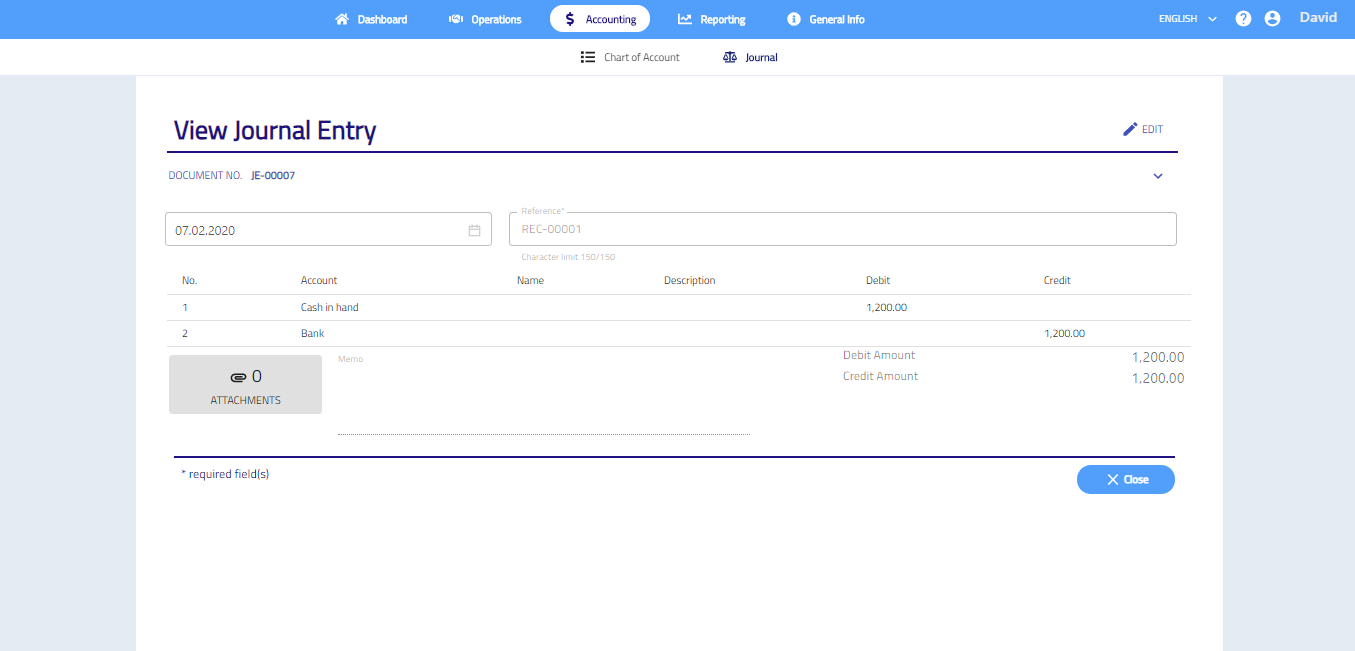
- After editing, click SAVE.
View journal
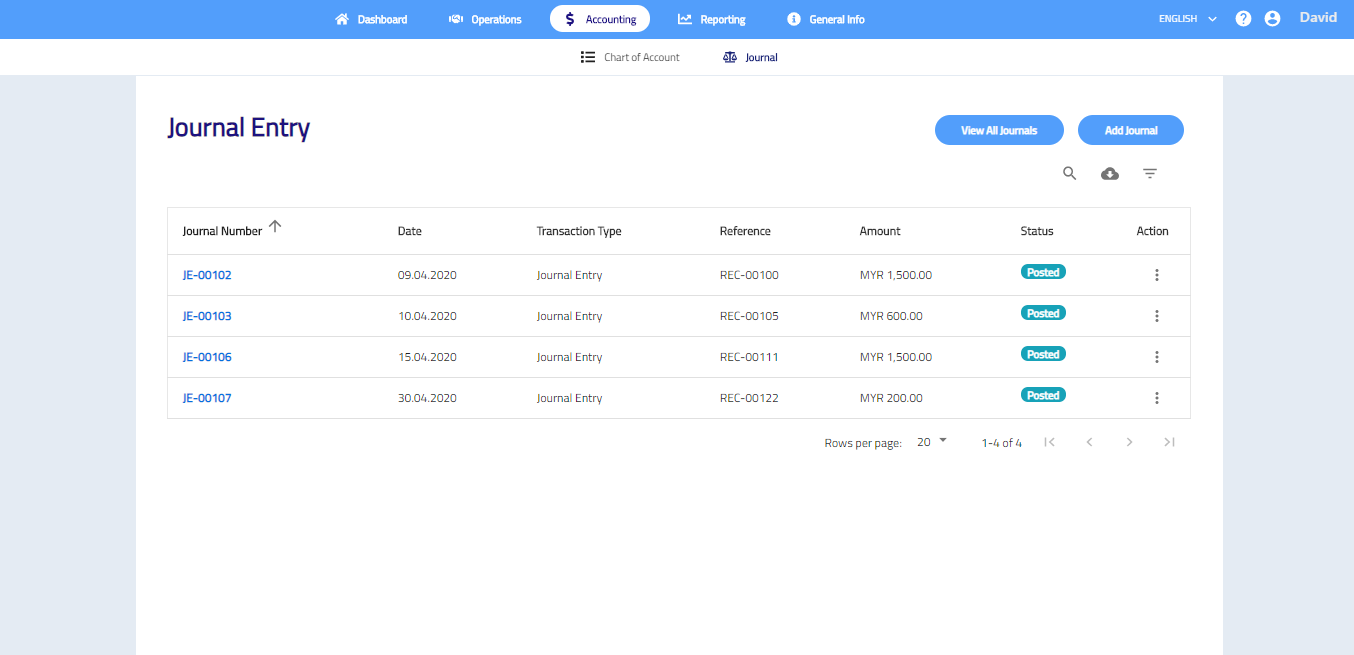
To view only manually created journal entries, please follow these steps: Accounting > Journal.
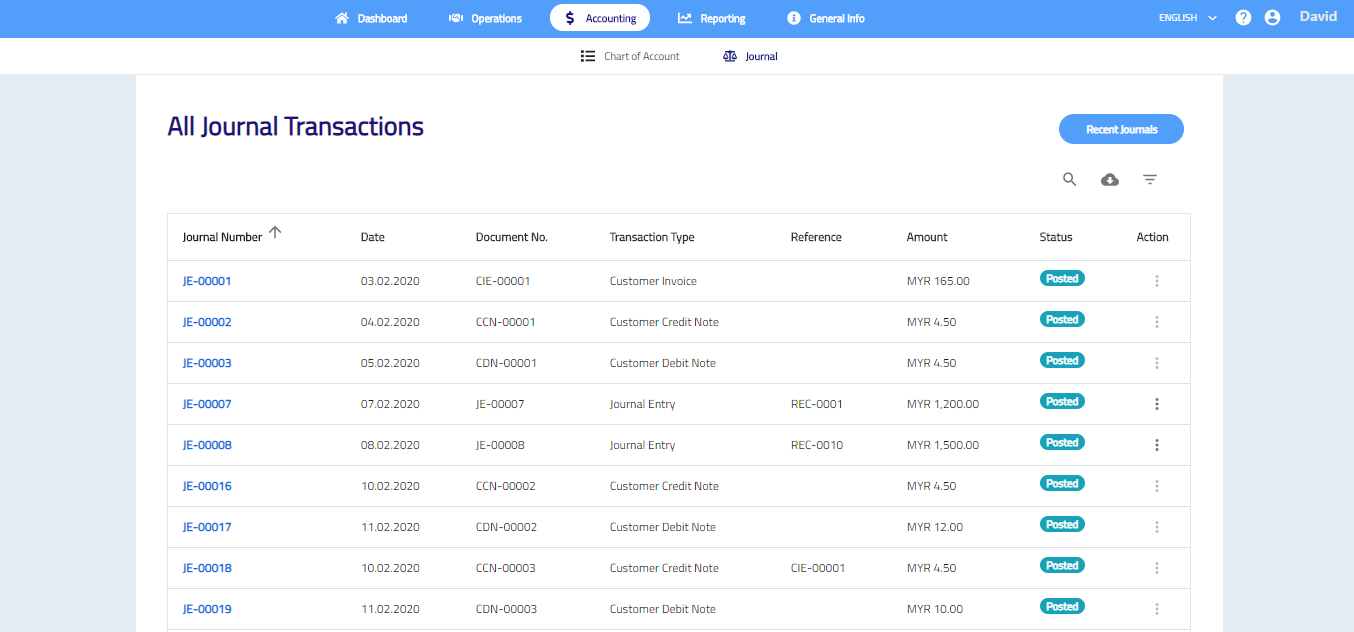
To view all journals, please follow these steps: Accounting > Journal > View All Journals.
If want to view the transaction in details, select the document number.
Delete journal
- Click on the .
- Click and click Yes.
Download journal
To download journal entry, click Accounting > Journal > to download the journal entry in CSV file.
To download all journal transactions, click Accounting > Journal > View All Journal Transactions > to download all journal transactions CSV file.