
Operations
Customer Transactions
Customer transactions record all sales related operations in the business. You may add and manage customer invoices, credit notes and debit notes.
The dashboard presents all customers’ outstanding and payments received.
You may access all outstanding transactions by clicking on Total Outstanding and click on Recent Total Payment to view current month’s payments.
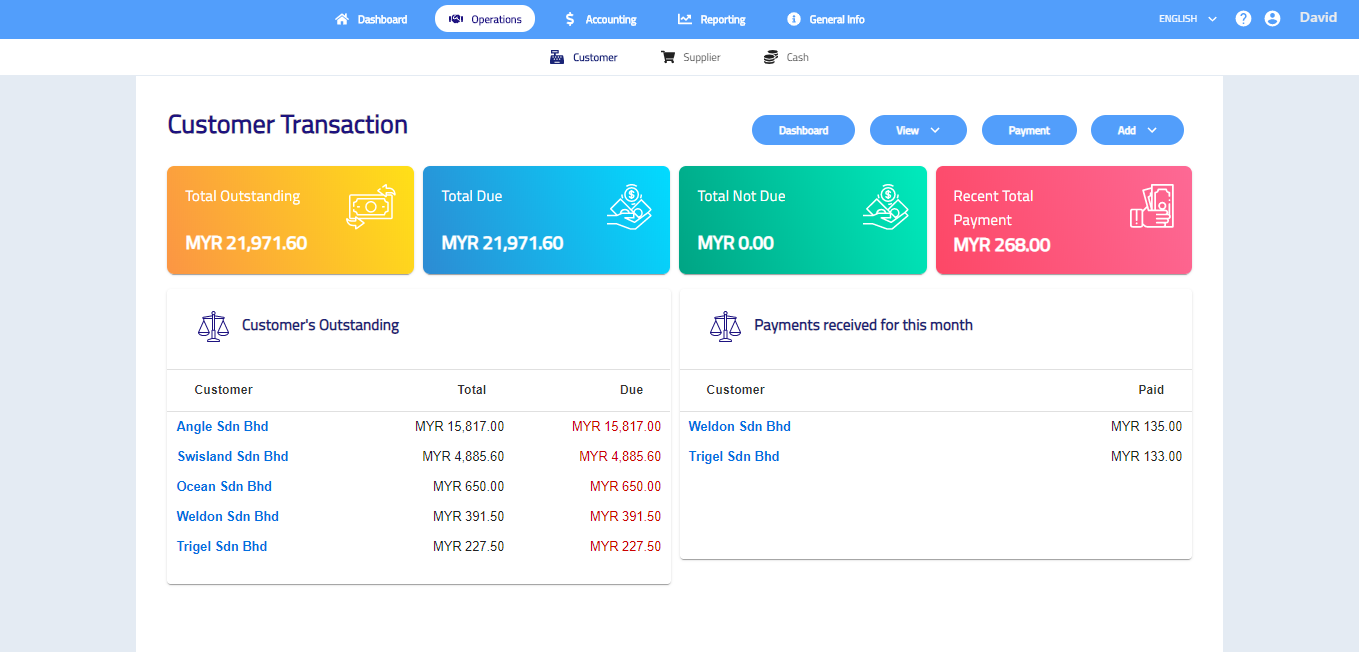
Add new Customer Transactions
Customer Invoice
- Go to Operations > Customer > Add > Invoice.
- Complete the invoice by selecting a customer, add date and due date, choose your product and services and enter the quantity. Click
 to select the project, branch and salesperson and enter the tax reference if needed.

- If necessary, add the Reference, Discount, Memo, Adjustment Amount and attach document or any file by clicking the ATTACHMENTS on the bottom left. This can be used to store any related documents for future references.
- Click SAVE to save the invoice and return to dashboard. Click
 and select DRAFT to save as draft or select SAVE & NEW to save multiple invoices consecutively or select SAVE & GENERATE PDF to save the invoice and generate the PDF.
Customer Credit Note
- Go to Operations > Customer > Add > Credit Note.
- Complete the credit note by selecting a customer, add date and due date, choose your product and services and enter the quantity. Click to select the project, branch and salesperson and enter the tax reference if needed.

- If necessary, add the Reference, Memo and attach document or any file by clicking the ATTACHMENTS on the bottom left. This can be used to store any related documents for future references.
- Click SAVE to save the credit note and return to dashboard. Click and select DRAFT to save as draft or select SAVE & NEW to save multiple credit notes consecutively select SAVE & GENERATE PDF to save the credit note and generate the PDF.
Debit Note
- Go to Operations > Customer > Add > Debit Note.
- Complete the debit note by selecting a customer, add date and due date, choose your product and services and enter the quantity. Click to select the project, branch and salesperson and enter the tax reference if needed.
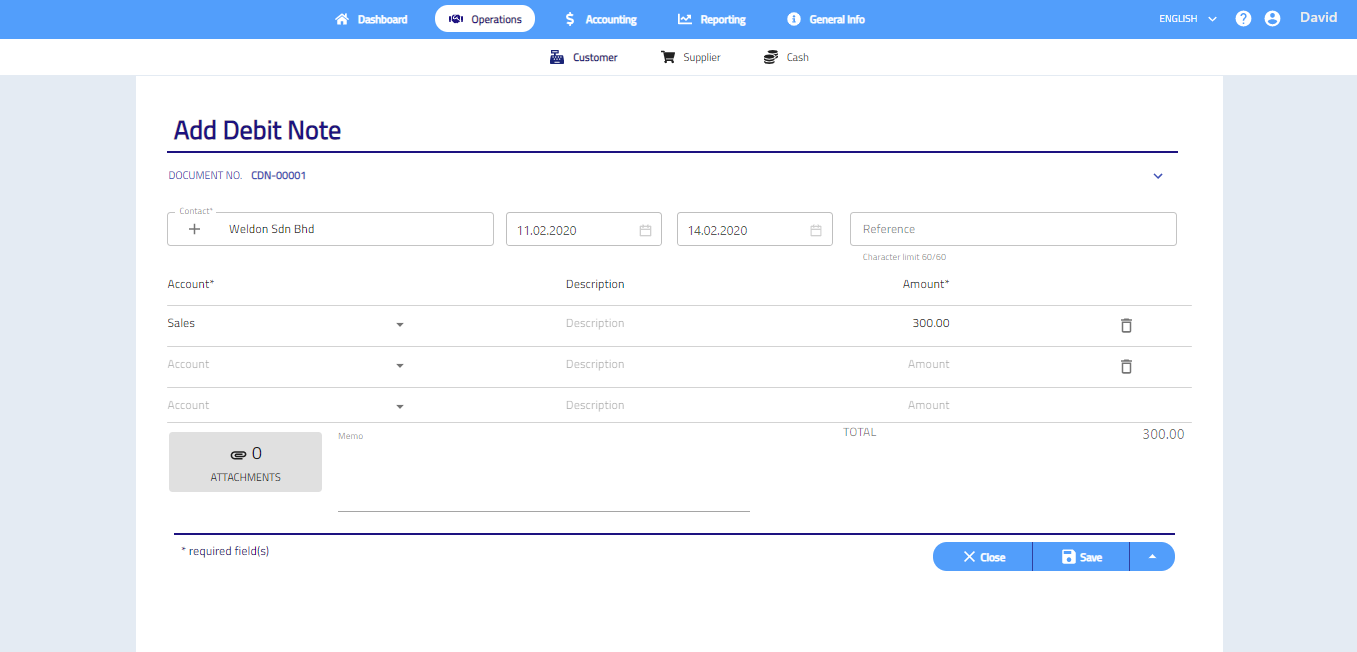
- If necessary, add the Reference, Memo and attach document or any file by clicking the ATTACHMENTS on the bottom left. This can be used to store any related documents for future references.
- Click SAVE to save the debit note and return to dashboard. Click and select DRAFT to save as draft or select SAVE & NEW to save multiple debit notes consecutively or select SAVE & GENERATE PDF to save the debit note and generate the PDF.
Action
Click  to select action.
The action includes:
- Generate delivery order
- Generate transaction to PDF
- Duplicate transaction
- Delete transaction
Note: Opening balance can only delete.
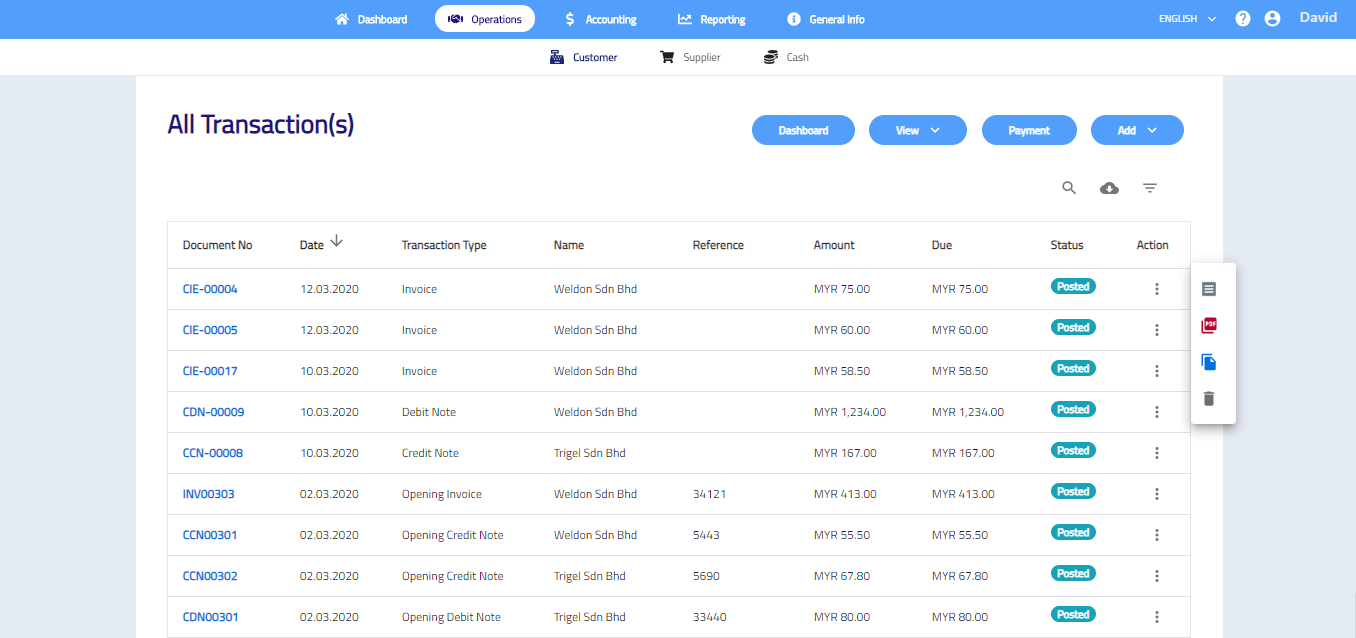
Edit Customer Transactions
- Edit customer transaction, go to Operations > Customer > View > Transaction(s).
- Select the document number that want to edit.
- Click
 to edit transactions.
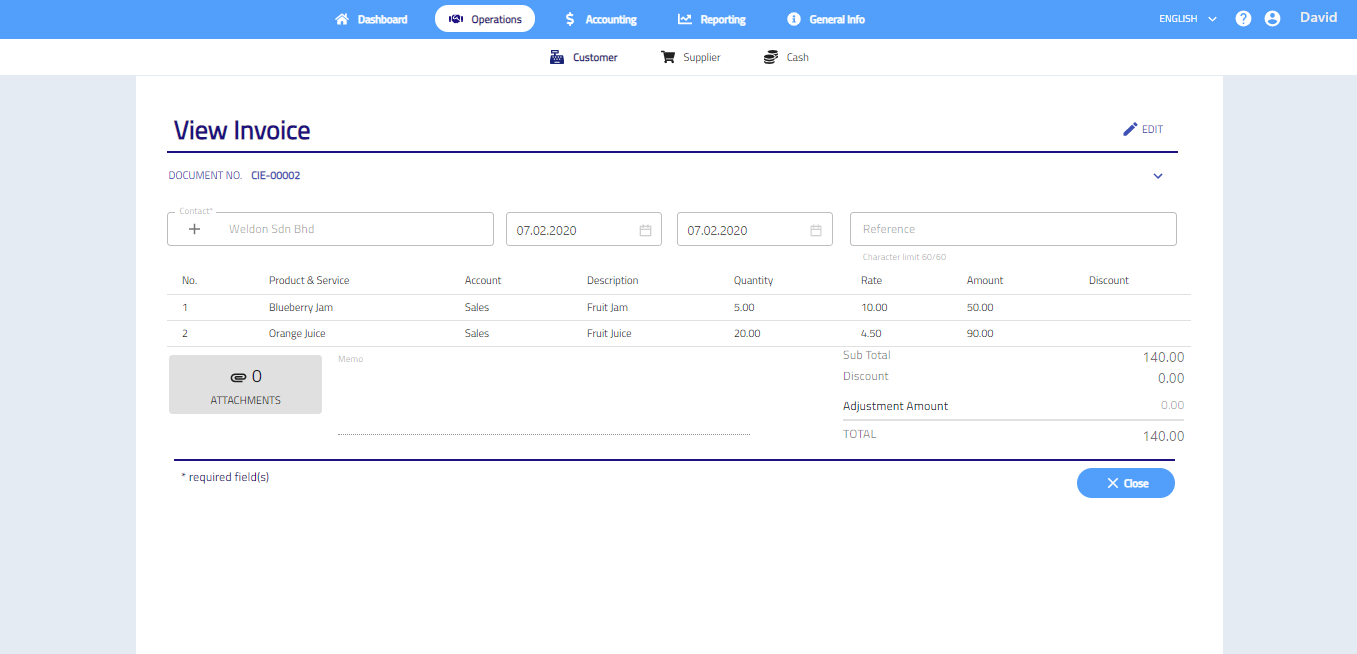
- After done edit, click SAVE.
Record Customer Payment
- Record customer payment, go to Operations > Customer > Payment.
- Tick the box(s) that need to make payment.
- Click Record Payment.
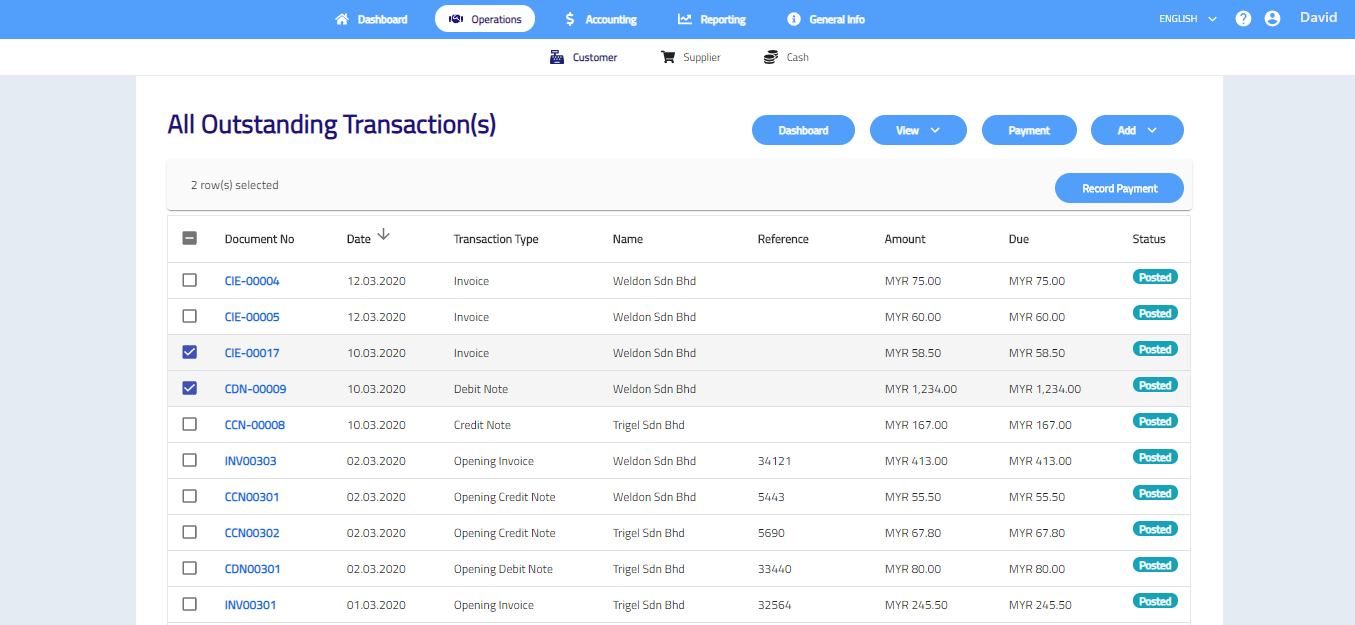
- Select date and account, enter the reference and change the payment amount if needed.
- If necessary, attach document or any file by clicking the ATTACHMENTS which is in the bottom left corner of the form. This can be used to store any related documents for future references.
- Click SAVE.

Note: After saved payment, you are not allowed to edit the transaction.
View Customer Transactions
Customer Transactions
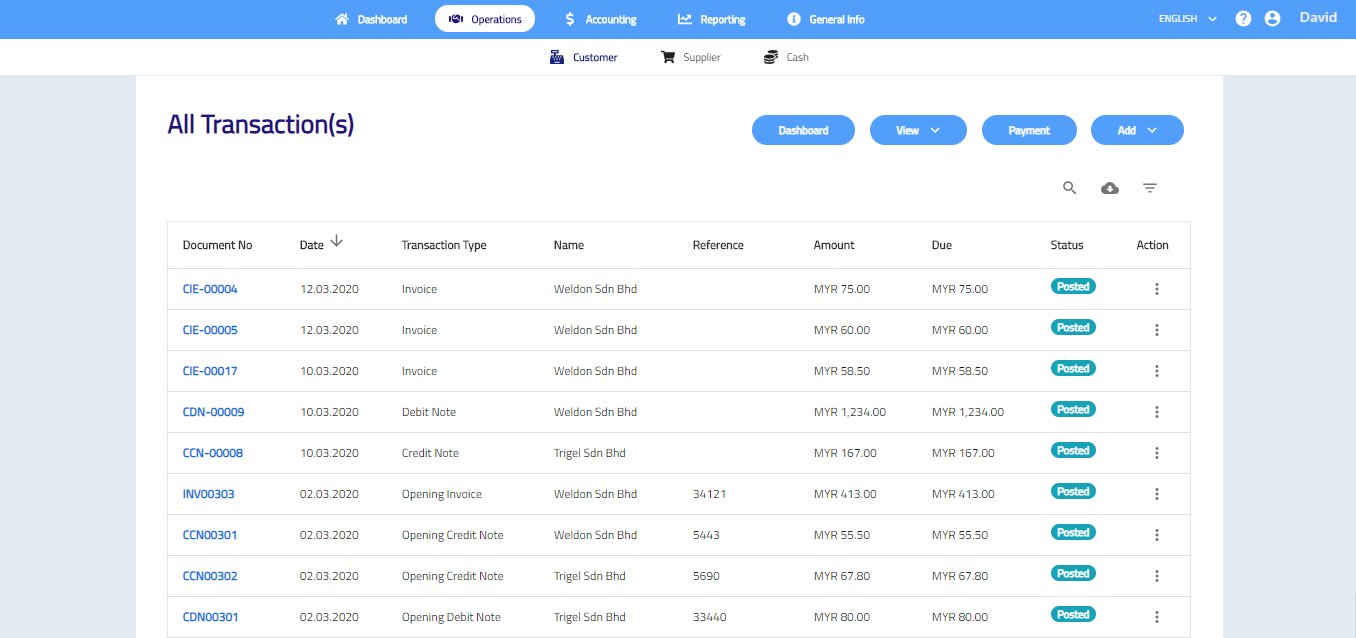
To view customer transactions, please follow these steps: Operations > Customer > View > Transaction(s).
If want to view the transaction in details, click the document number.
Customer Payment Receipts
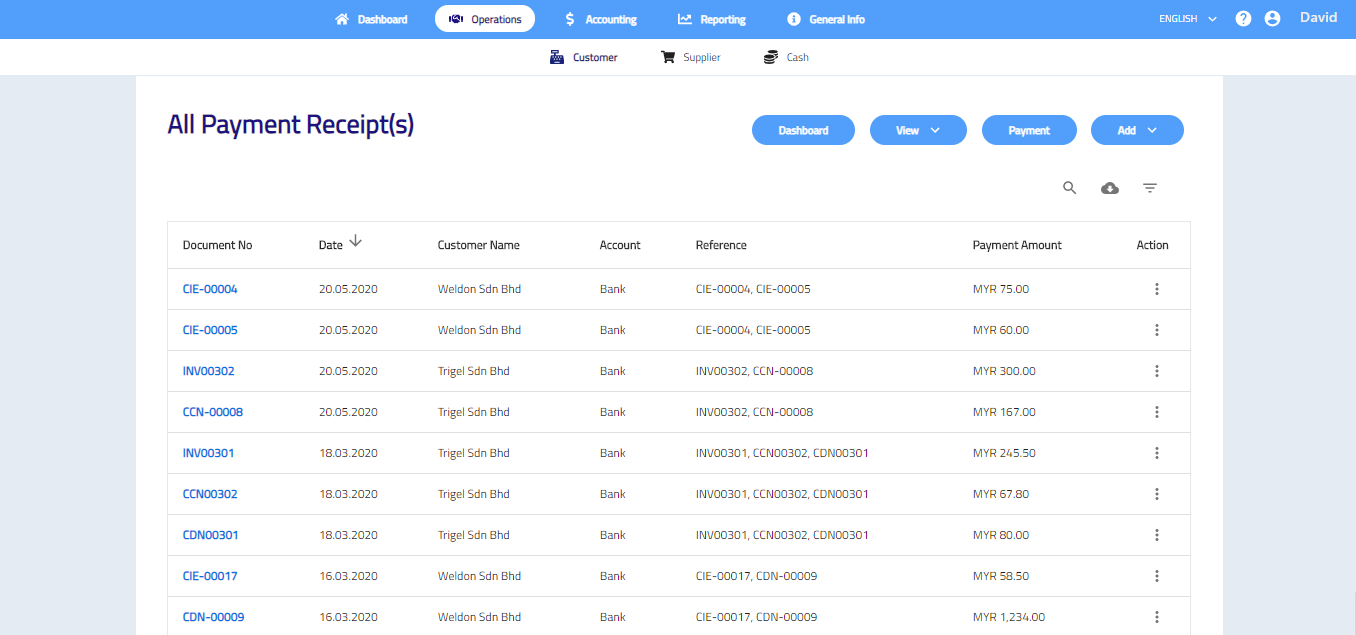
To view customer payment receipts, please follow these steps: Operations > Customer > View > Payment Receipt(s).
If want to view the payment receipts in details, click the document number.
Delete Customer Transactions
- To delete customer transaction, go to Operations > Customer > View > Transaction(s) ;
- Click .
- Click
 and then click Yes.
Note: Transaction cannot be delete if the transaction have been paid.
Payment Receipt
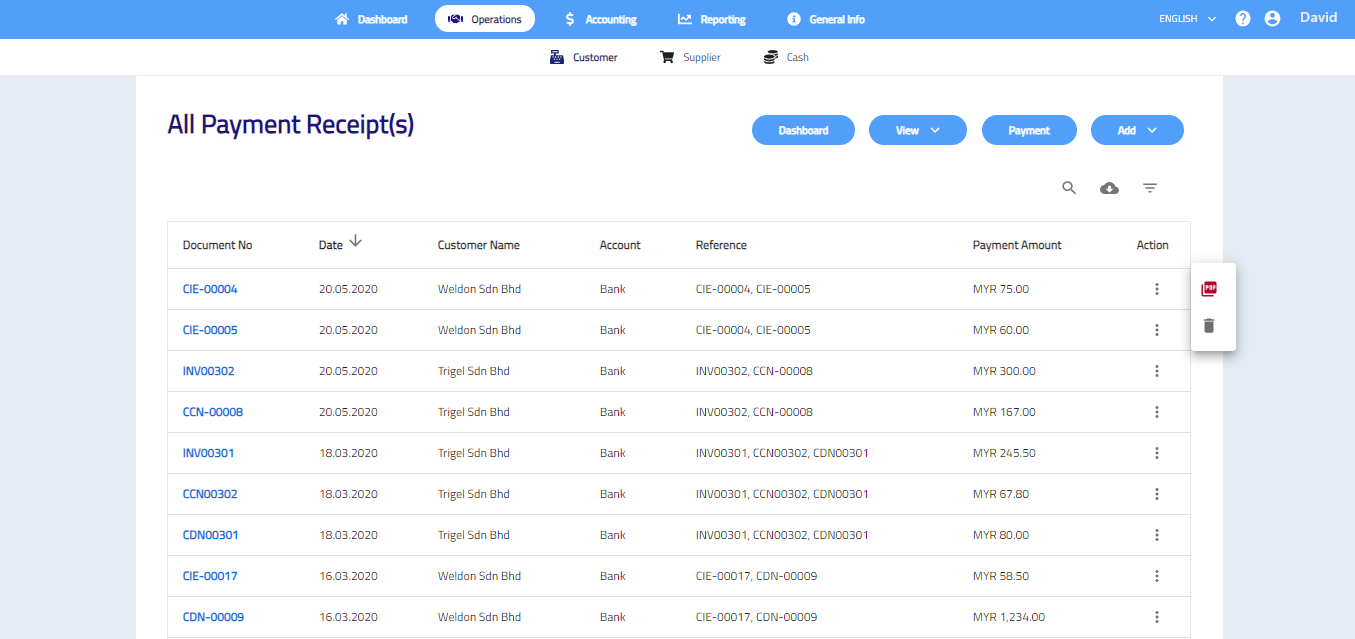
- To delete customer payment receipt, go to Operations > Customer > View > Payment Receipt(s) ;
- Click and then click Yes.
Supplier Transactions
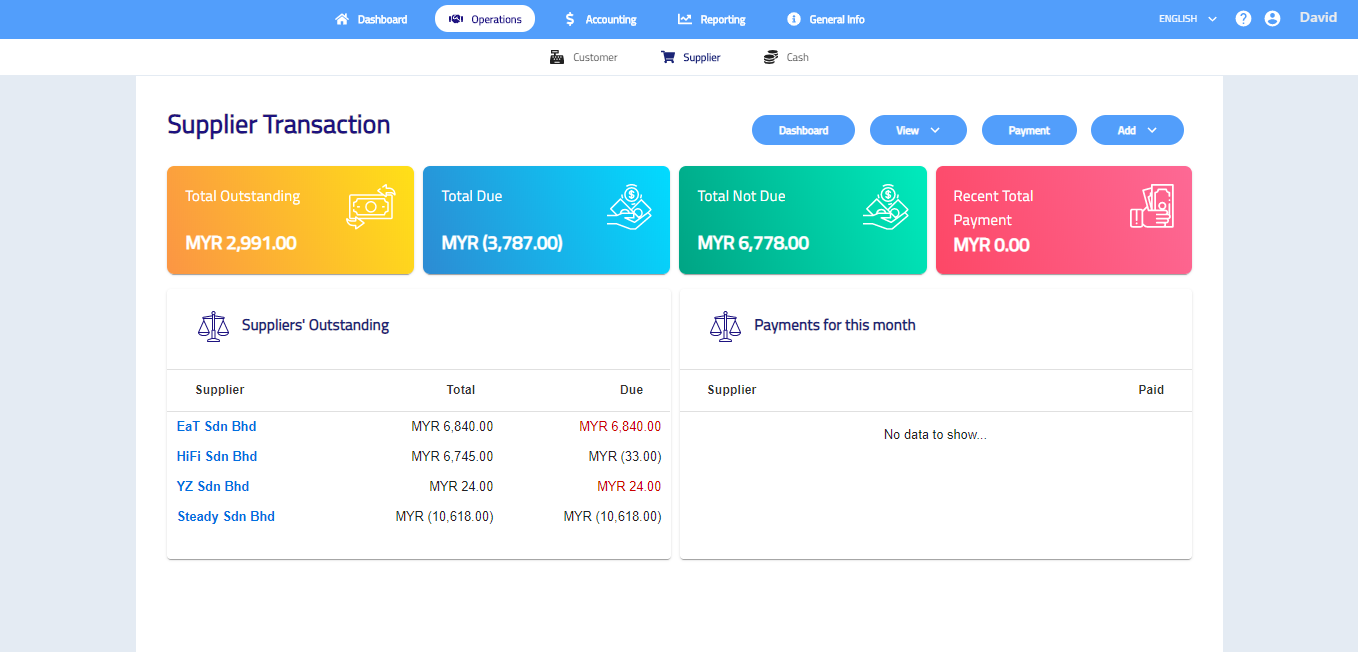
Supplier transactions record all purchases related operations in the business. You may add and manage supplier invoices, credit notes and purchase orders.
The dashboard presents all suppliers’ outstanding and payments received.
You may access all outstanding transactions by clicking on Total Outstanding and click on Recent Total Payment to view current month’s payments.
Add new Supplier Transactions
Supplier Invoice
- Go to Operations > Supplier > Add > Invoice.
- Complete the invoice by entering document number, select supplier, add date and due date, select account and enter the quantity and rate. Click to select the project, branch and salesperson if needed.

- If necessary, add the Reference, Memo, Adjustment Amount and attach document or any file by clicking the ATTACHMENTS on the bottom left. This can be used to store any related documents for future references.
- Click SAVE to save the invoice and return to dashboard. Click and select DRAFT to save as draft or select SAVE & NEW to save multiple invoices consecutively.
Supplier Credit Note
- Go to Operations > Supplier > Add > Credit Note.
- Complete the credit note by entering document number, select supplier, add date and due date, select your account and then enter the amount. Click to select the project, branch and salesperson if needed.

- If necessary, add the Reference, Memo and attach document or any file by clicking the ATTACHMENTS on the bottom left corner of the form. This can be used to store any related documents for future references.
- Click SAVE to save the credit note and return to transactions list. Click and select DRAFT to save as draft or select SAVE & NEW to save multiple credit notes consecutively.
Purchase Order
- Go to Operations > Supplier > Add > Purchase Oder.
- Complete the purchase order by selecting a supplier, add date, select your account and then enter the quantity and rate. Click to select the project, branch and salesperson if needed.

- If necessary, add the Reference, Delivery date and address, Memo and attach document or any file by clicking the ATTACHMENTS on the bottom left corner of the form. This can be used to store any related documents for future references.
- Click SAVE to save the purchase order and return to transactions list. Click and select DRAFT to save as draft or select SAVE & NEW to save multiple purchase orders consecutively or select SAVE & GENERATE PDF to save the purchase order and generate it to PDF file.
Action
Click to select action.
- Duplicate transaction
- Delete transaction
- Generate PDF (Only purchase order)

Edit Supplier Transactions
- Edit supplier transaction, go to Operations > Supplier > View > Transaction(s).
- Select the document number that want to edit.
- Click to edit transactions.
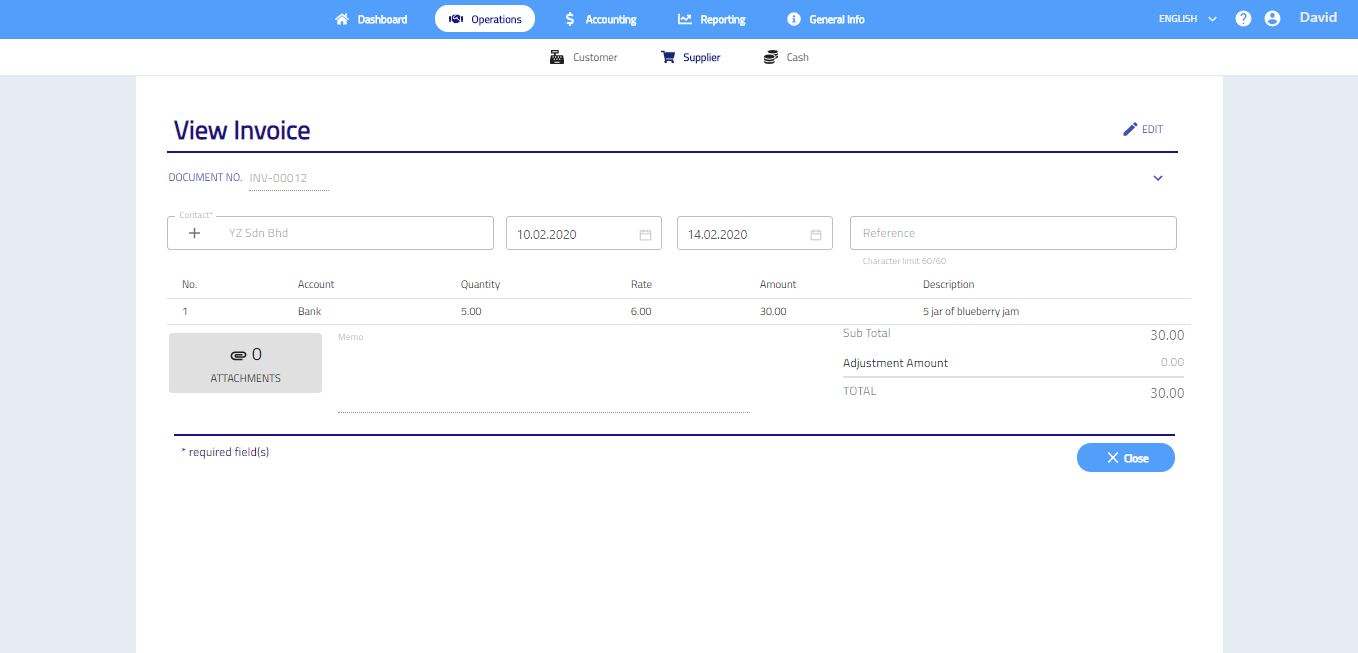
- After done edit, click SAVE.
Record Supplier Payment
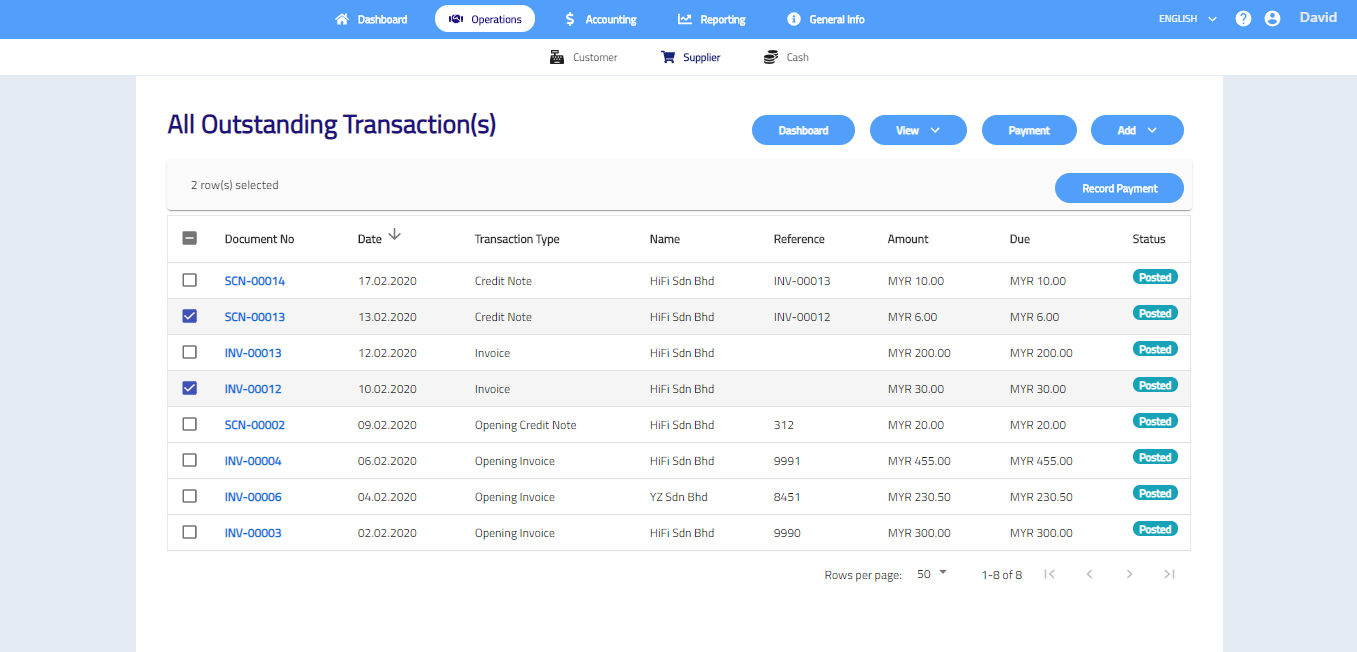
- Record supplier payment, go to Operations > Supplier > Payment.
- Tick the box(s) that need to make payment.
- Click Record Payment.
- Select date and account, enter the reference and change the payment amount if needed.
- If necessary, attach document or any file by clicking the ATTACHMENTS which is in the bottom left corner of the form. This can be used to store any related documents for future references.
- Click SAVE.
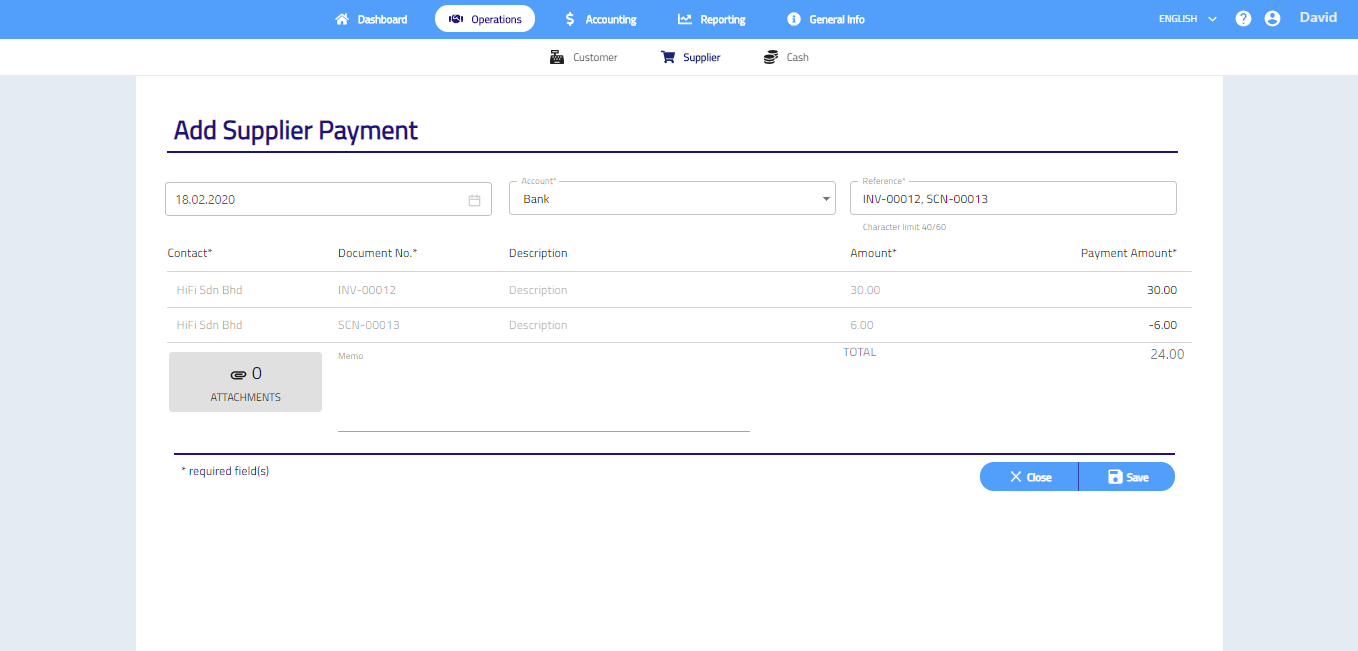
Note: After saved payment, you are not allowed to edit the transaction.
View Supplier Transactions
Supplier Transactions
To view supplier transactions, please follow these steps: Operations > Supplier > View > Transaction(s).
If want to view the transaction in details, select the document number.

Supplier Payment Receipts
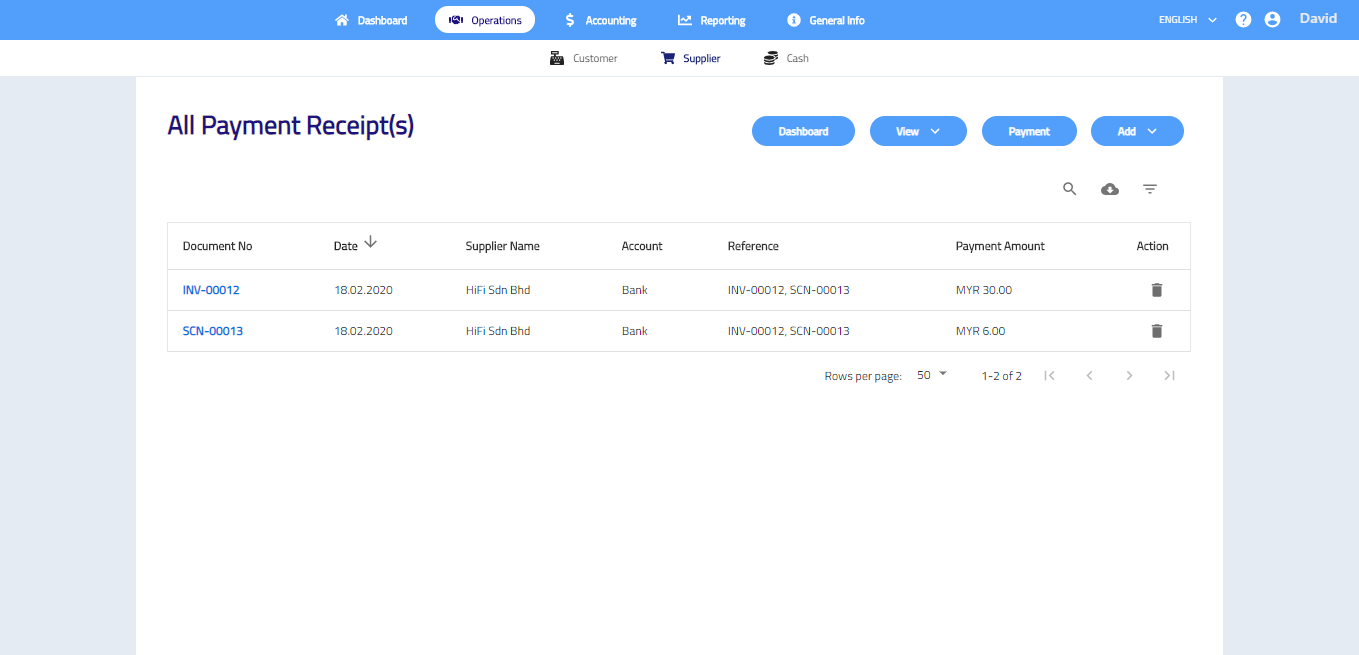
To view supplier payment receipts, please follow these steps: Operations > Supplier > View > Payment Receipt(s).
If want to view the payment receipts in details, select the document number.
Delete Supplier Transactions
- To delete supplier transaction, go to Operations > Supplier > View > Transaction(s).
- Click .
- Click and click Yes.
Note: Transaction cannot be delete if the transaction have been paid.
Supplier Payment
- To delete supplier payment receipt, go to Operations > Supplier > View > Payment Receipt(s).
- Click and then click Yes.
Cash Transactions
Cash transactions records transactions that are related to cash and bank accounts. You may add and manage the cash transactions such as cash inflow, cash outflow and sales receipt.
Cash Inflow can be used to record any money received like interest received, bank deposits, cheque received etc.
Cash Outflow can be used to record any payouts like expense claims, bank withdrawals, cash bills etc.
Sales Receipt can be used to record cash sales.
The dashboard summarizes the total cash inflow and total cash outflow of your business. It also shows the total bank amount and total cash in hand amount for both cash inflow and cash outflow.

Add new Cash Transactions
Cash Inflow
- Go to Operations > Cash > Add > Cash Inflow.
- Complete the cash inflow by entering name and reference, add date, select accounts and enter description and amount. Click
 to select the project, branch and salesperson if needed.

- If necessary, add the Memo and attach document or any file by clicking the ATTACHMENTS on the bottom left. This can be used to store any related documents for future references.
- Click SAVE to save the cash inflow and return to dashboard. Select DRAFT to save as draft or select SAVE & NEW to save multiple cash inflows consecutively.
Cash Outflow
- Go to Operations > Cash > Add > Cash Outflow.
- Complete the cash outflow by entering name and reference, add date, choose account and account and enter description and amount. Click to select the project, branch and salesperson if needed.
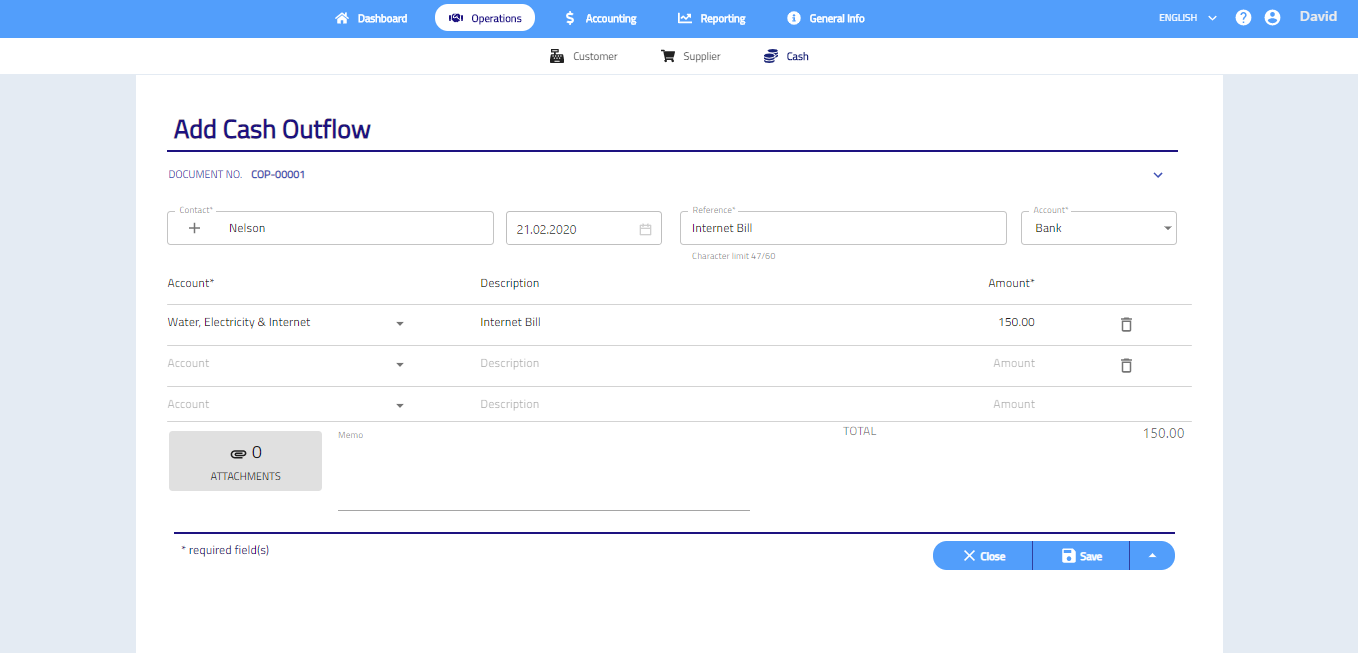
- If necessary, add the Memo and attach document or any file by clicking the ATTACHMENTS on the bottom left. This can be used to store any related documents for future references.
- Click SAVE to save the cash outflow transaction and return to dashboard. Click and select DRAFT to save as draft or select SAVE & NEW to save multiple cash outflows consecutively.
Sales Receipt
- Go to Operations > Cash > Add > Sales Receipt.
- Complete the sales receipt by entering name and reference, add date, choose account and account and enter description and amount. Click to select the project, branch and salesperson if needed.

- If necessary, add the Memo and attach document or any file by clicking the ATTACHMENTS on the bottom left. This can be used to store any related documents for future references.
- Click SAVE to save the sales receipt and return to transactions list. Click and select DRAFT to save as draft or select SAVE & NEW to save multiple sales receipt consecutively.
Action
Click to select action.
- Duplicate transaction
- Delete transaction
- Generate PDF (Only sales receipt)

Edit Cash Transactions
- Edit customer transaction, go to Operations > Customer > View > Transaction(s).
- Select the document number that want to edit.
- Click to edit transactions.

- After done edit, click SAVE.
View Cash Transactions
Cash transactions
To view cash transactions, please follow these steps: Operations > Cash > View.
If want to view the transaction in details, select the name.

Delete Cash Transactions
Cash Transactions
- Go to Operate > Cash > View.
- Tick the box that want to delete.
- Click and then click Yes to delete.
Adding Attachments to Transaction
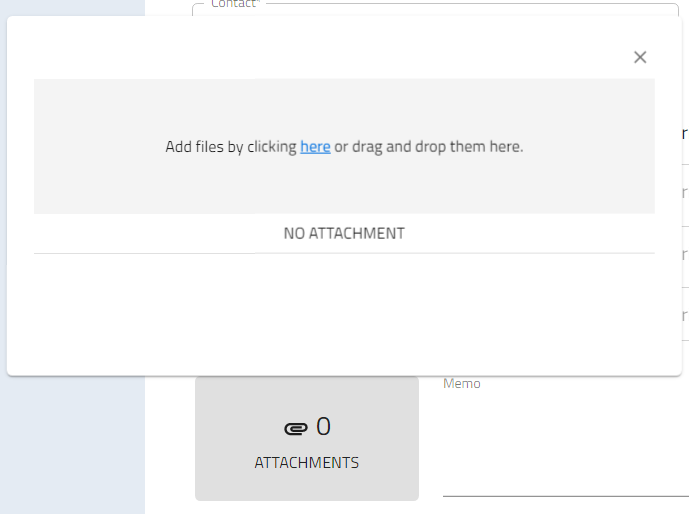
The attachments can be added to all transactions by browsing a file from your local computer or the file can be dragged and dropped into the attachment field.
Reconcile Bank Account
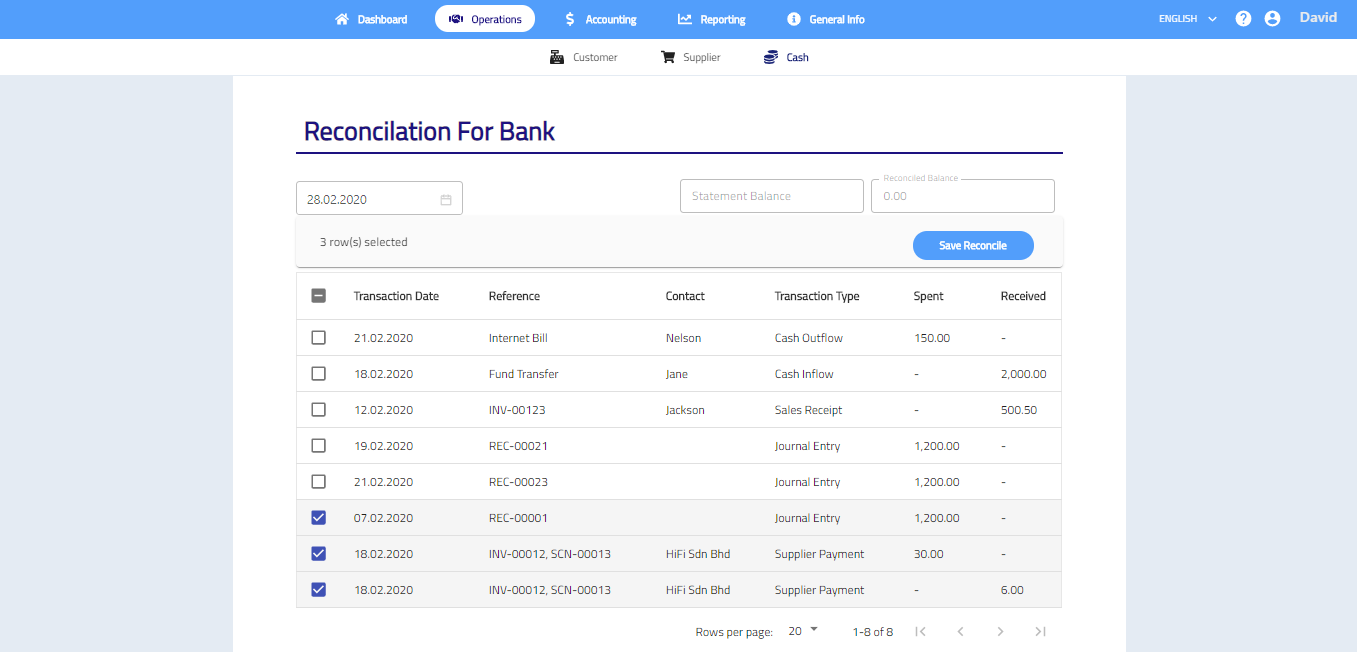
- Click on the RECONCILE to reconcilation for Bank or reconcilation for Cash In Hand.

- Select date and tick the box that you want to reconciled.
- Click Save Reconcile.

View Reconcilation Transactions
- Click on the Bank account or Cash in Hand account to show all reconciled and unreconciled transactions.
- If want to undo the reconciled transactions, click
 and click Yes to undo the reconciled transaction.
 - If necessary, you can click the reference number to show the journal entry.

