Reporting
Customer Reports
Customer Report shows a few type of customer reports.
Access by: Reporting > Customer.
Go to Reporting > Customer and select the type of report that you would like to generate.
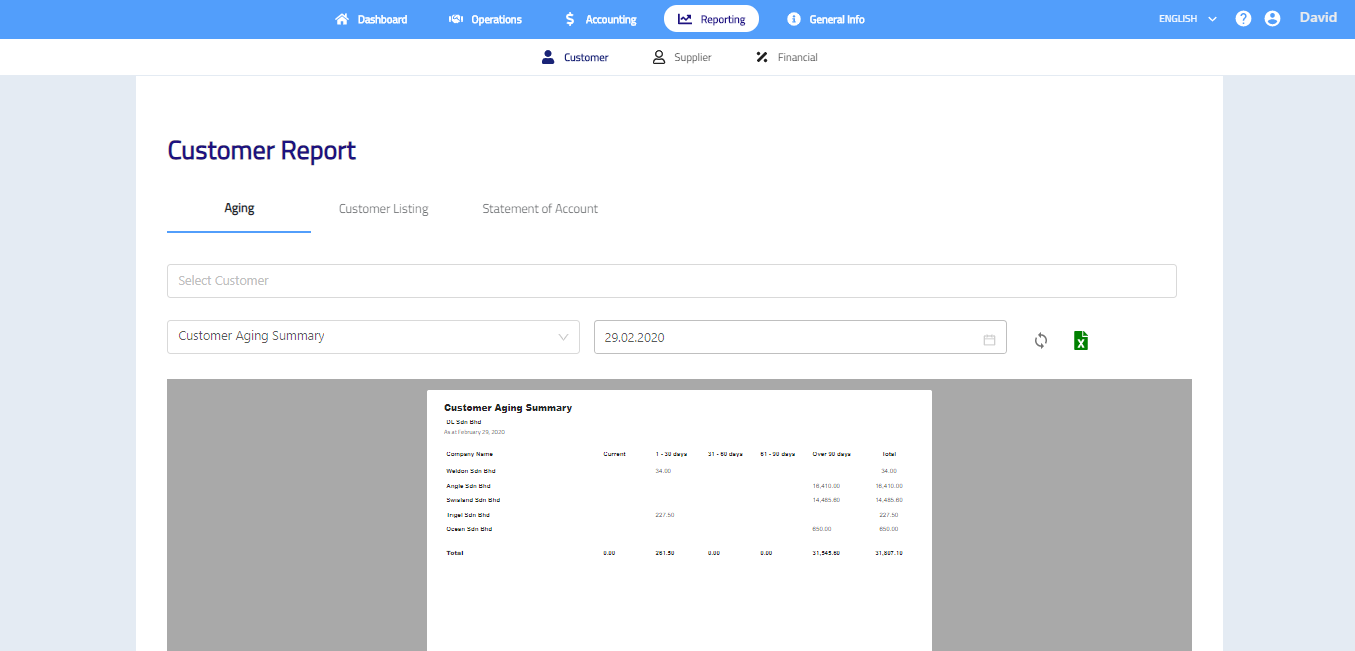
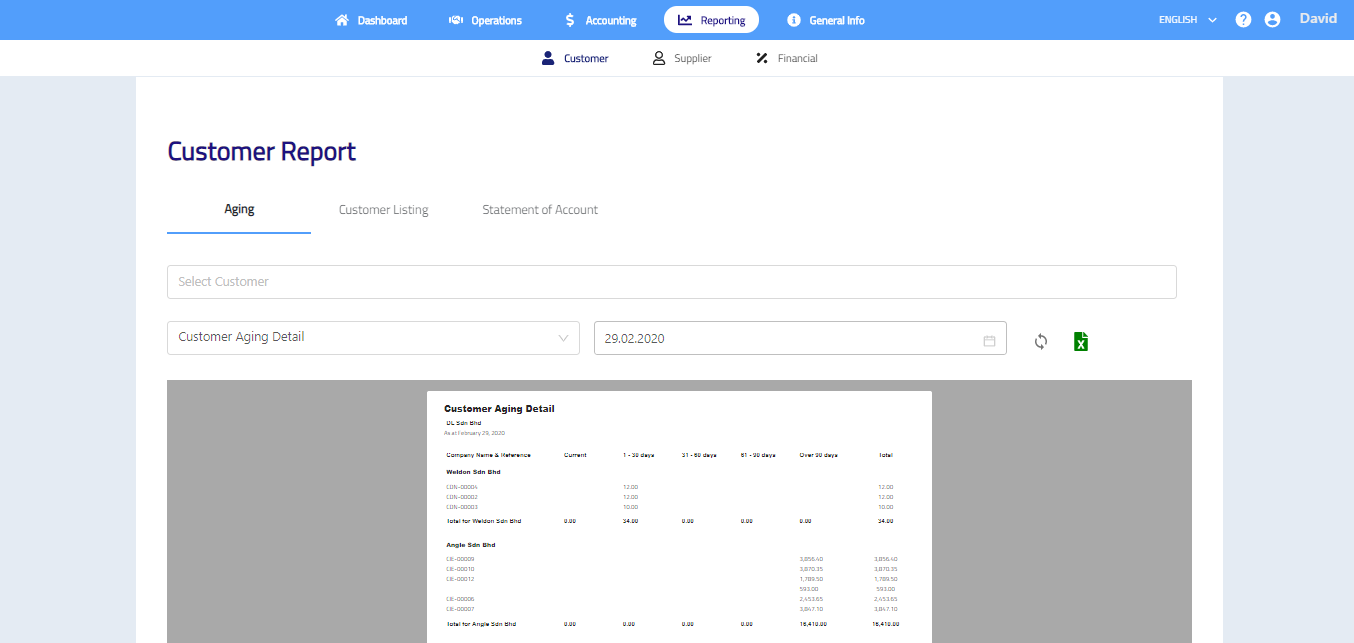
Customer Aging
- Select one or multiple customer or leave it blank for all customers.
- Select report type.
- Select date.
- Click
 to generate report. Click
  to save report as Excel file.
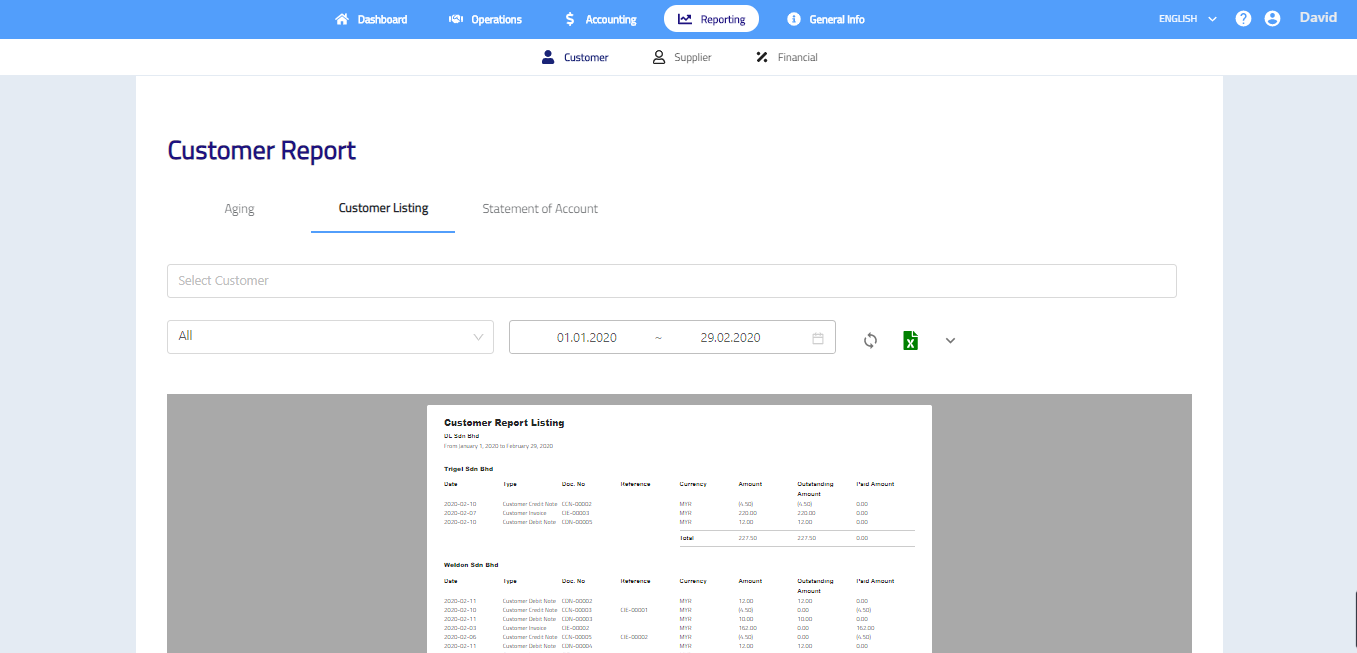
Customer Listing
- Select one or multiple customer or leave it blank for all customers.
- Select one transaction type or leave it for all transacitons.
- Select start date and end date.
- If necessary, click
 to select project, branch and salesperson.
 - Click to generate report. Click to save report as Excel file.
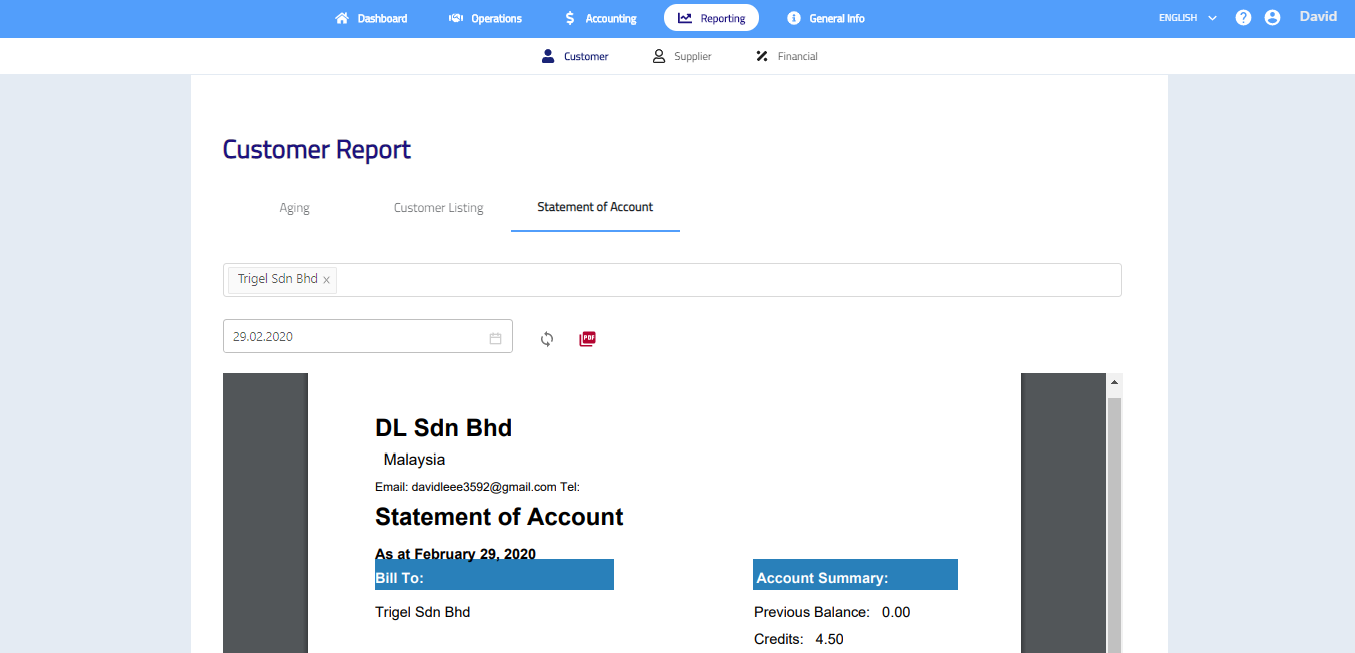
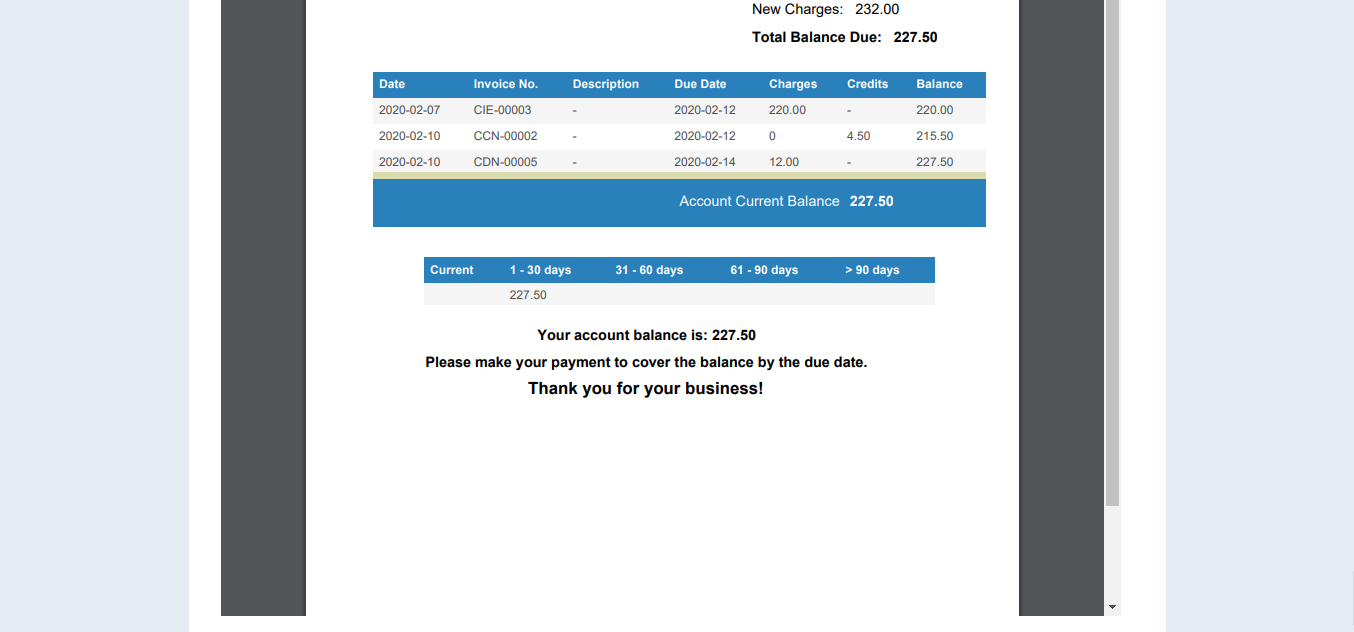
Statement of Account
- Select at least one customer.
- Select date.
- Click to generate report. Click
 to save report as PDF file.
Supplier Reports
Supplier Report shows few type of supplier reports.
Access by: Reporting > Supplier.
Go to Reporting > Supplier and select the type of report that you would like to generate.
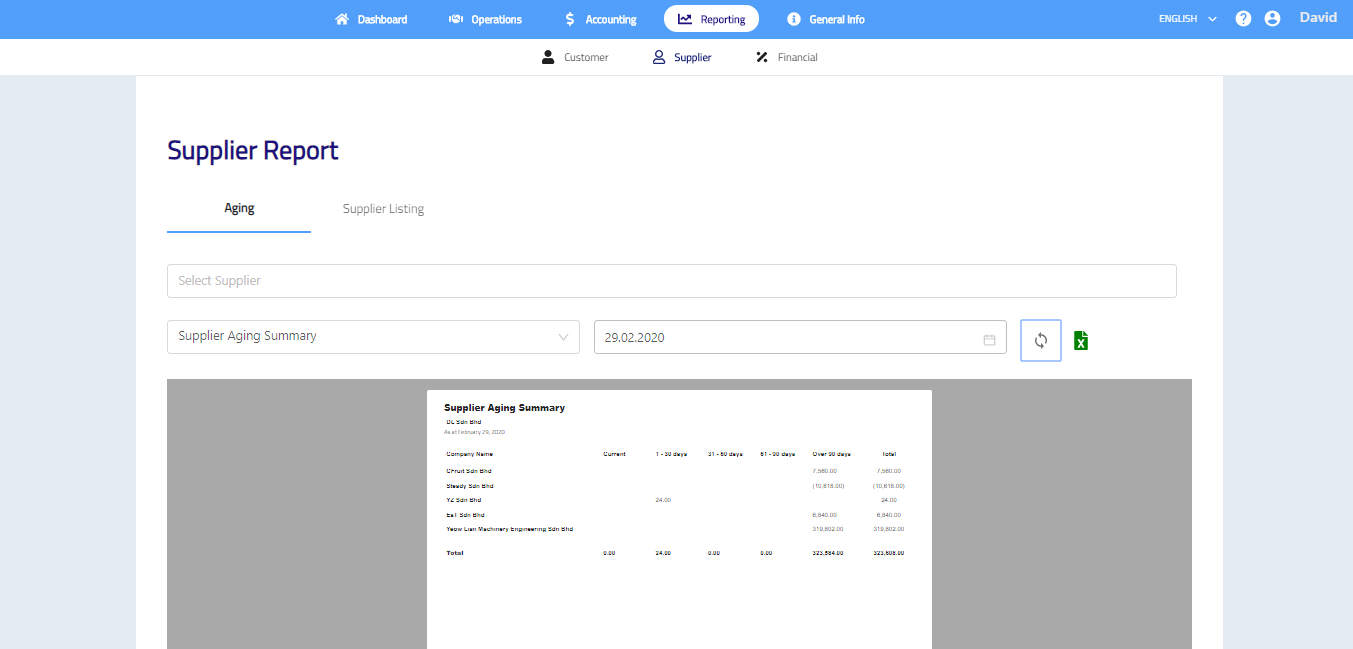
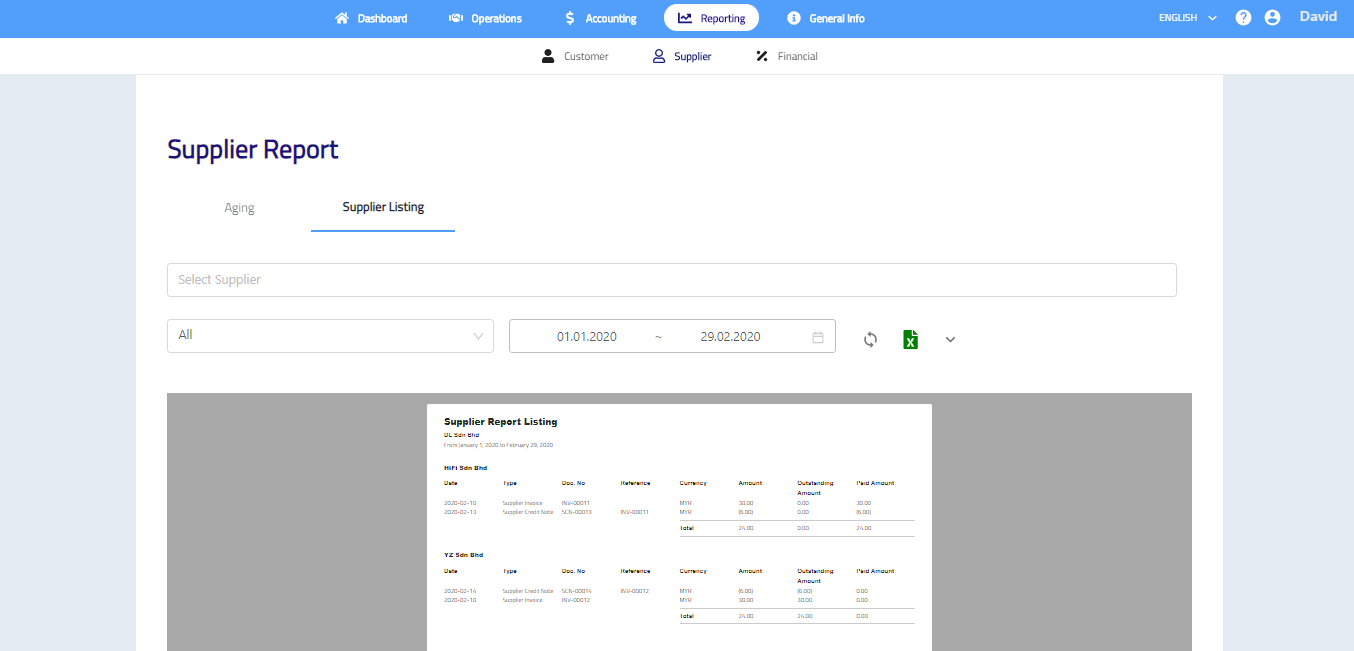
Supplier Aging
- Select one or multiple supplier or leave it blank for all supplier.
- Select report type.
- Select date.
- Click to generate report. Click to save report as Excel file.
Supplier Aging
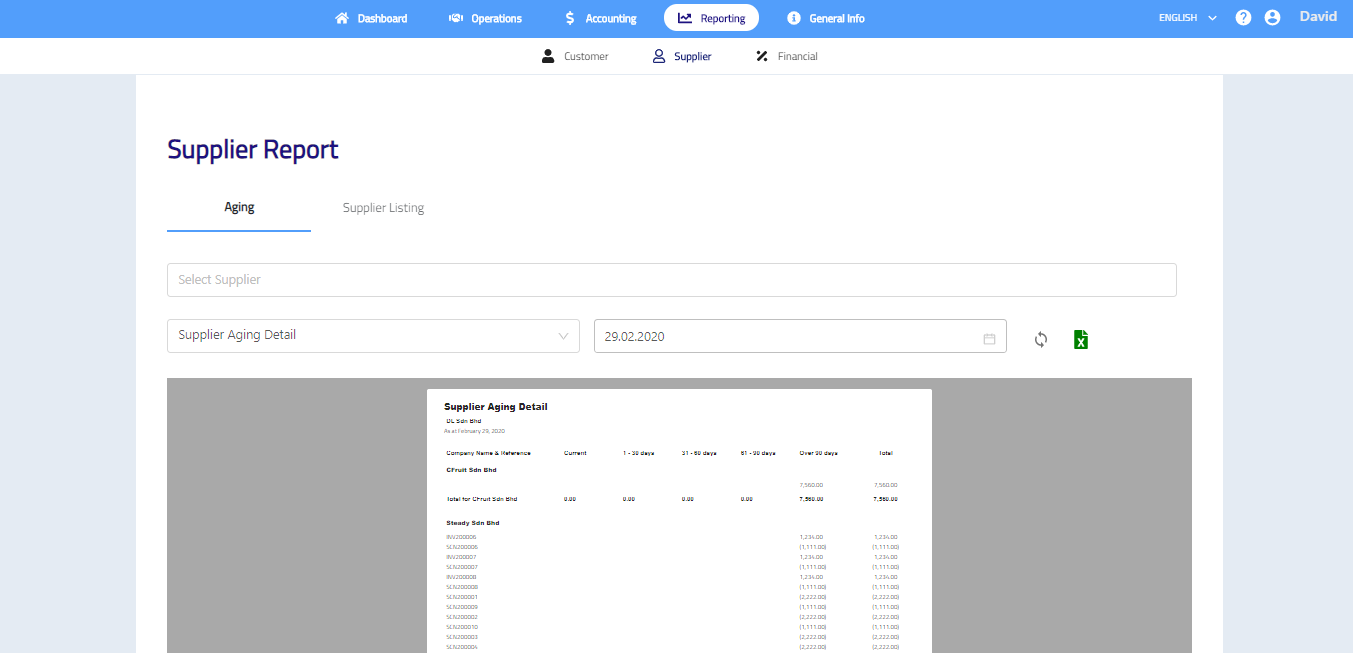
- Select one or multiple supplier or leave it blank for all supplier.
- Select one or multiple transaction or leave it blank for all transactions.
- Select start date and end date.
- If necessary, click to select project and branch.
- Click to generate report. Click to save report as Excel file.
Financial Reports
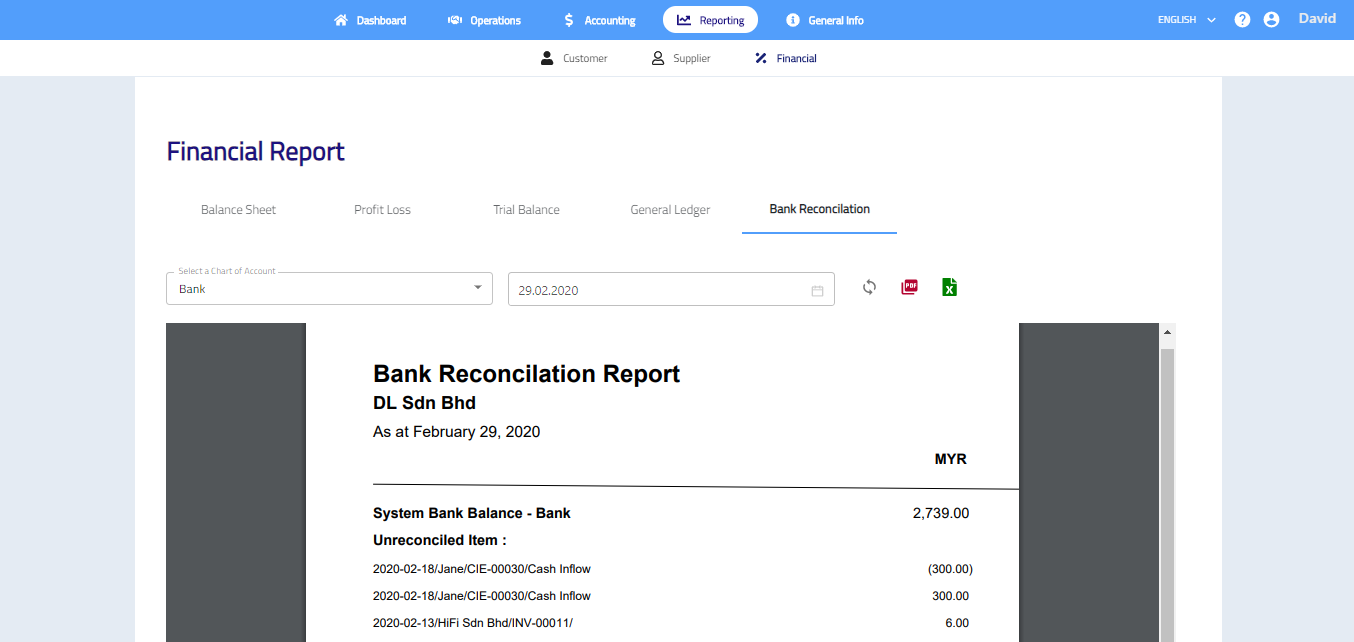
Analyze the financial position of the company via Financial Reports. Financial reports cover Balance Sheet, Trial Balance, Profit and Loss, General Ledger, Tax Reports (if applicable), Bank Reconciliation Report
Access by: Reporting > Financial.
Go to Reporting > Financial and select the type of report that you would like to generate.
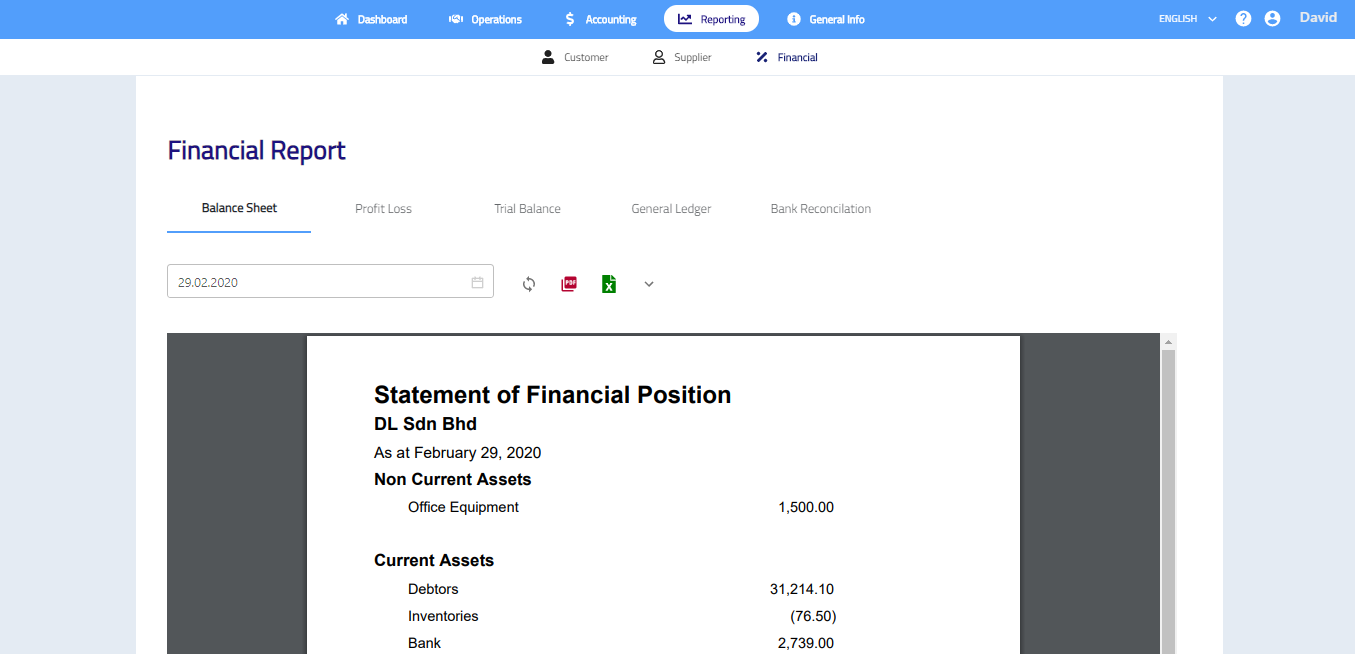
Balance Sheet/Statement of Financial Position
- Select date.
- If necessary, click to select project and branch.
- Click to generate report. Click to save report as PDF file and/or click to save report as Excel file.
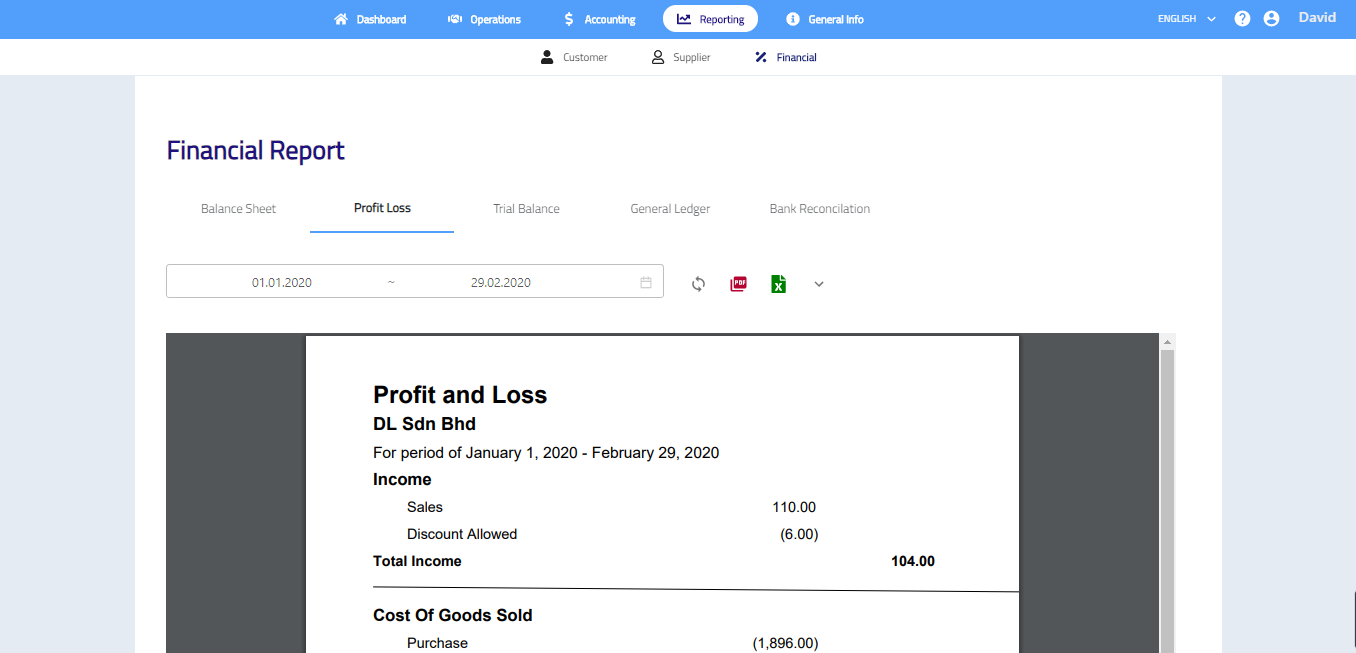
Profit and Loss
- Select start date and end date.
- If necessary, click to select project and branch.
- Click to generate report. Click to save report as PDF file and/or click to save report as Excel file.
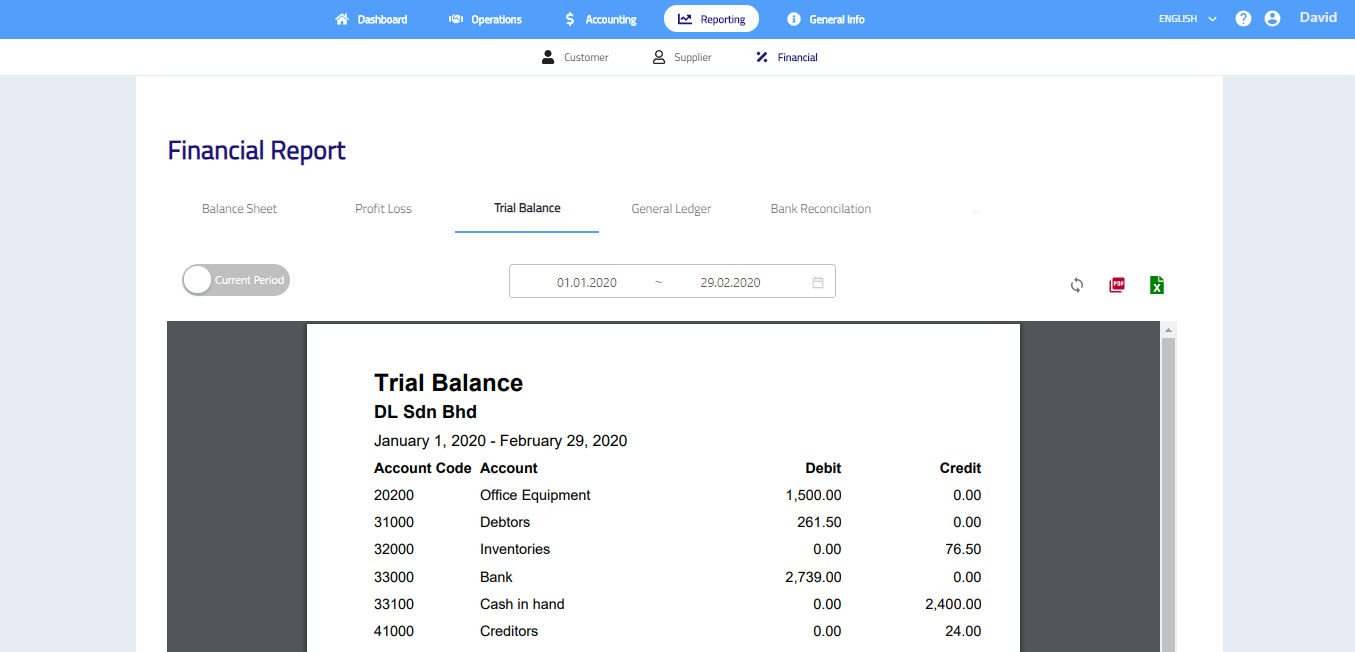
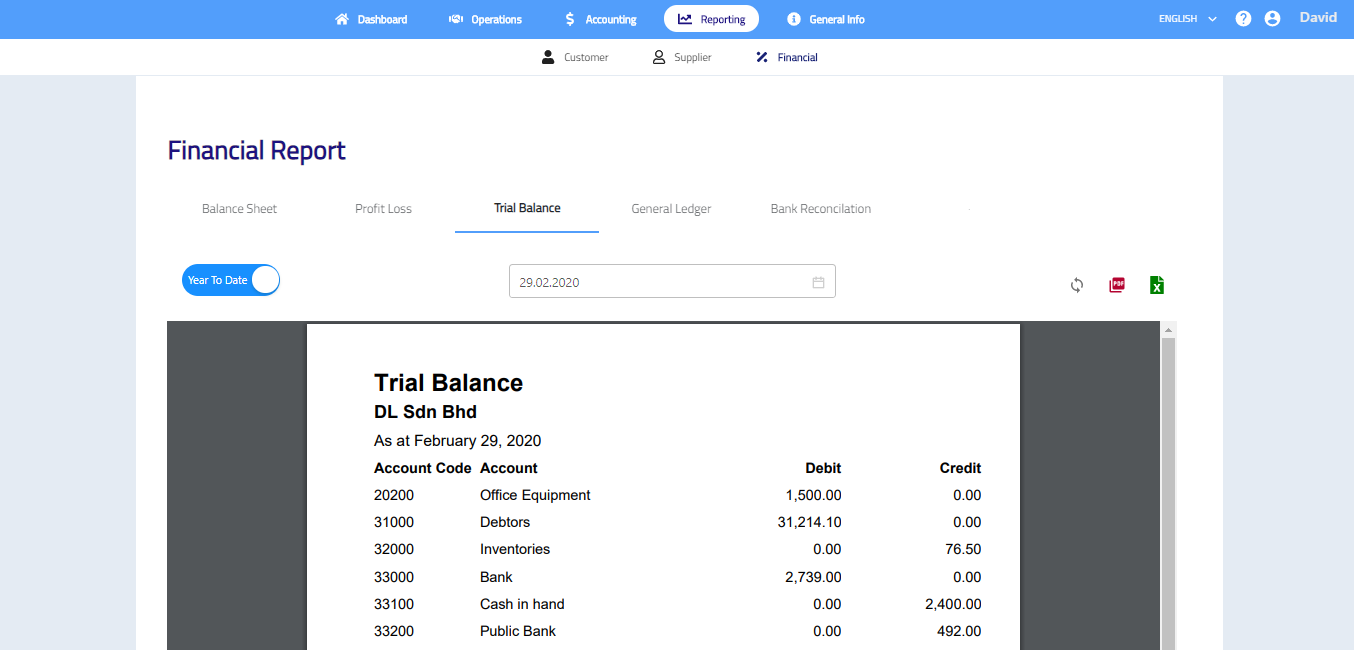
Trial Balance
- If necessary, click
 to select Year to Date.
 - Select date.
- Click to generate report. Click to save report as PDF file and/or click to save report as Excel file.
General Ledger
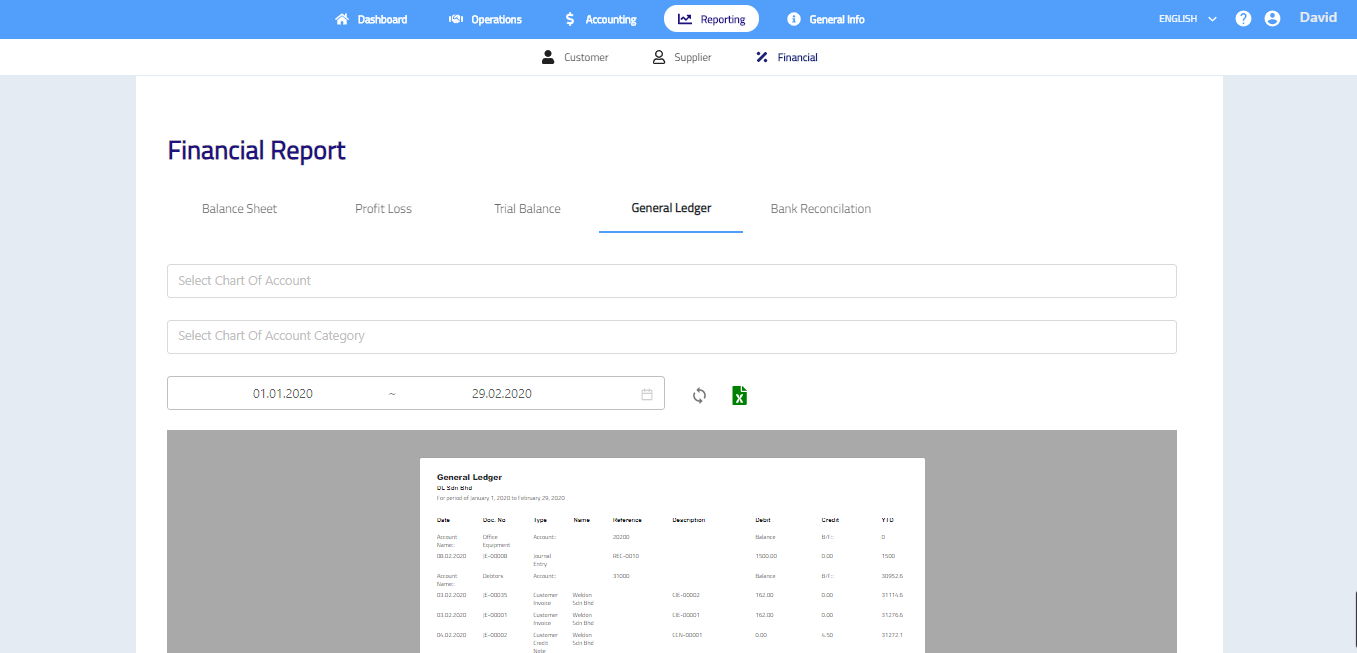
- Select one or multiple chart of account or leave it blank for all accounts.
- Select one or multiple chart of account category or leave it blank for all categories.
- Select start date and end date.
- Click to generate report. Click to save report as Excel file.
Bank Reconcilation
- Select a chart of account.
- Select date.
- Click to generate report. Click to save report as PDF file and/or click to save report as Excel file.