
Advanced Configuration
Advanced configuration allows you to configure additional settings about your company. There are several settings that should be updated or enabled after registering your account:
Note: Configuration should only be done when necessary.
To access Advanced Configuration, click  > Advanced Configuration.
1. Company
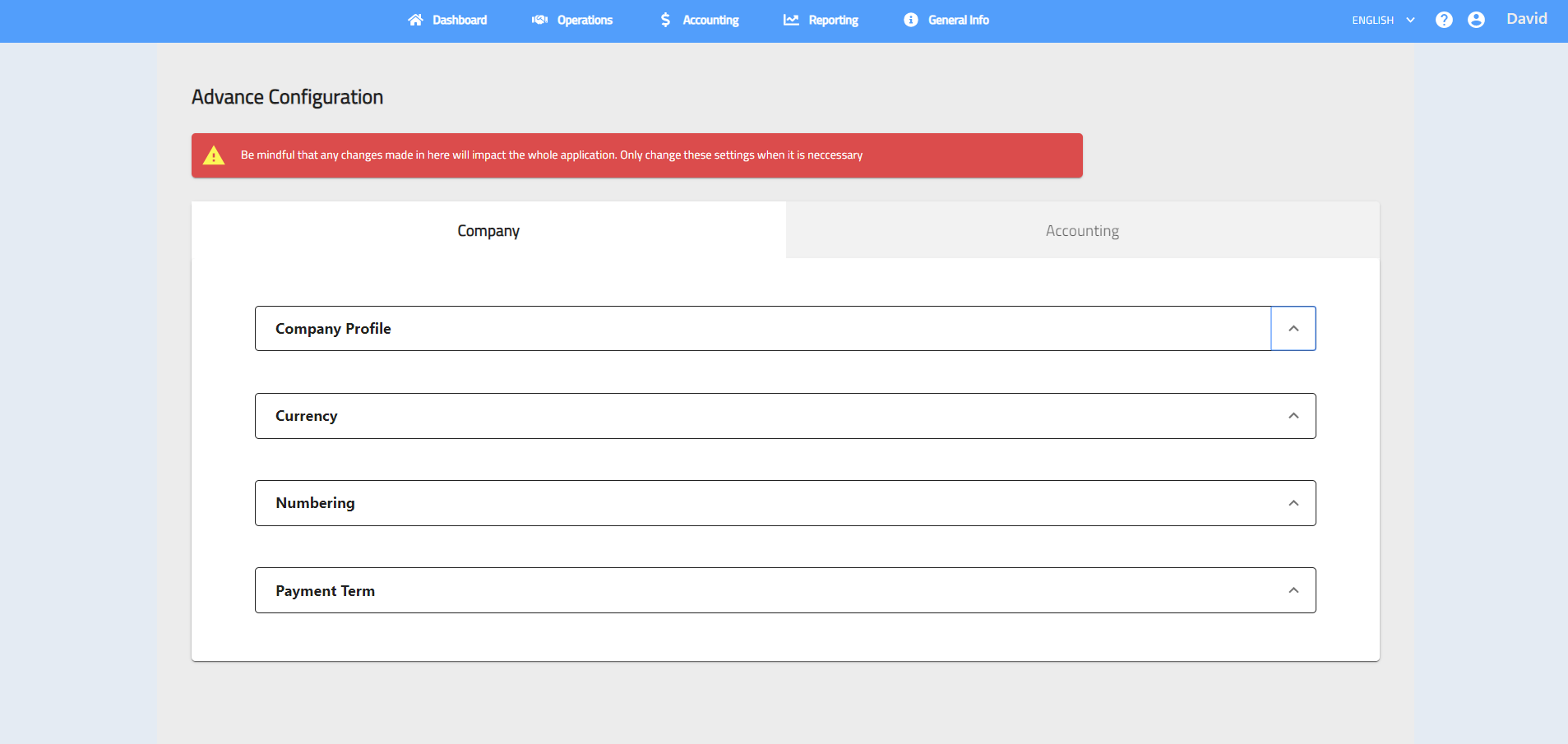
- Company Profile
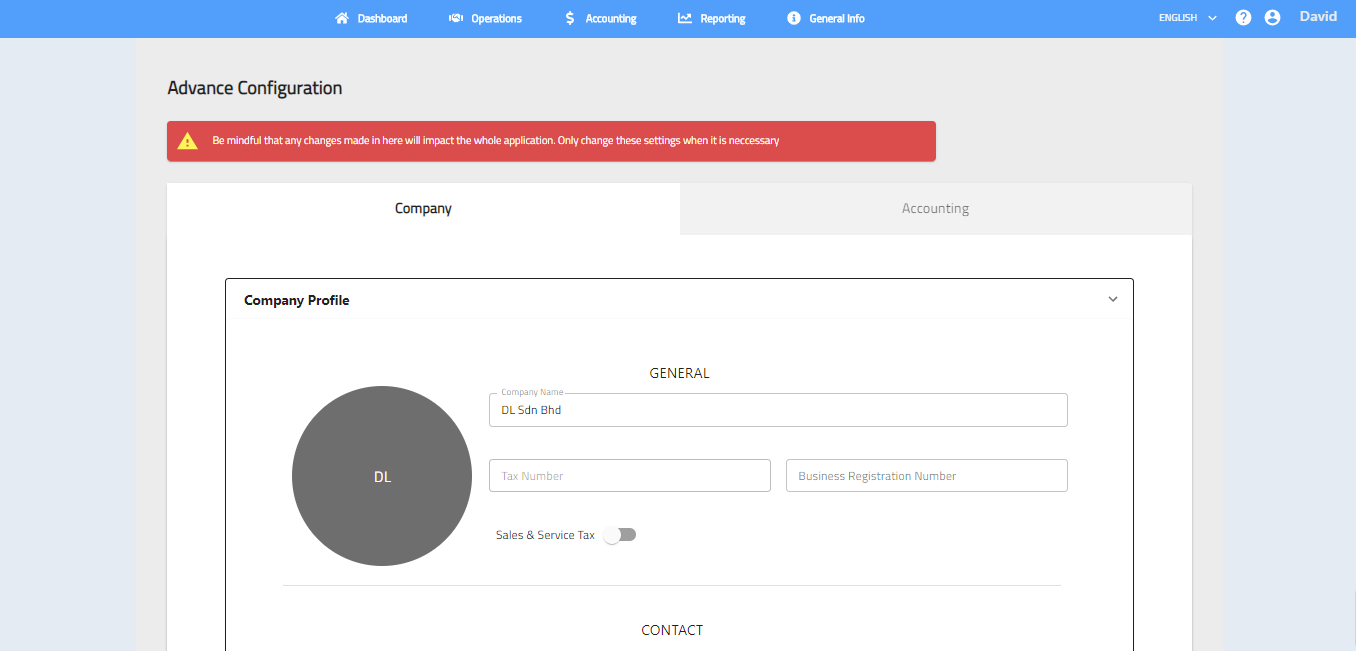
- Click on the ^ to expand and update your company’s general information, contact information and billing address.
- Click on the circle to upload your company logo.
- If necessary, activate the Sales and Service Tax. (Note: You may not deactivate once these modules are activated.)
- Click Save to save any changes.

- Currency
Update the currency or activate multi-currency if necessary.
Note: You may not deactivate multi-currency once it is activated.

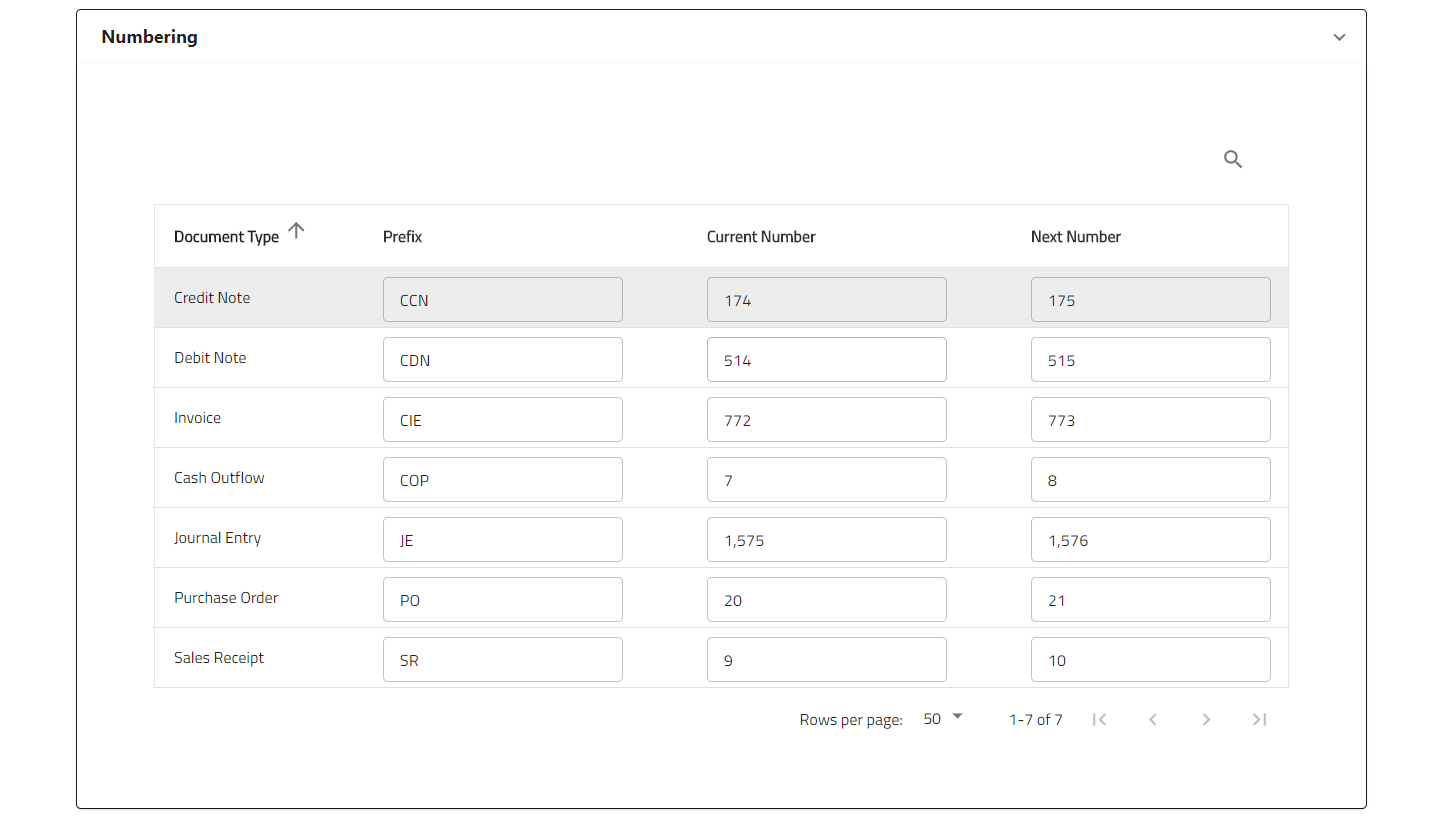
- Numbering
Customize the document type by changing the prefix, current document number and next document number.
e.g. To change numbering to start with ‘19001’;
Current Number should be set to: ‘19001’;
Next Number should be set to: ‘19002’.
Note: Numbering only allows up to 5 digits. Prefix only allows up to 3 letters/digits.
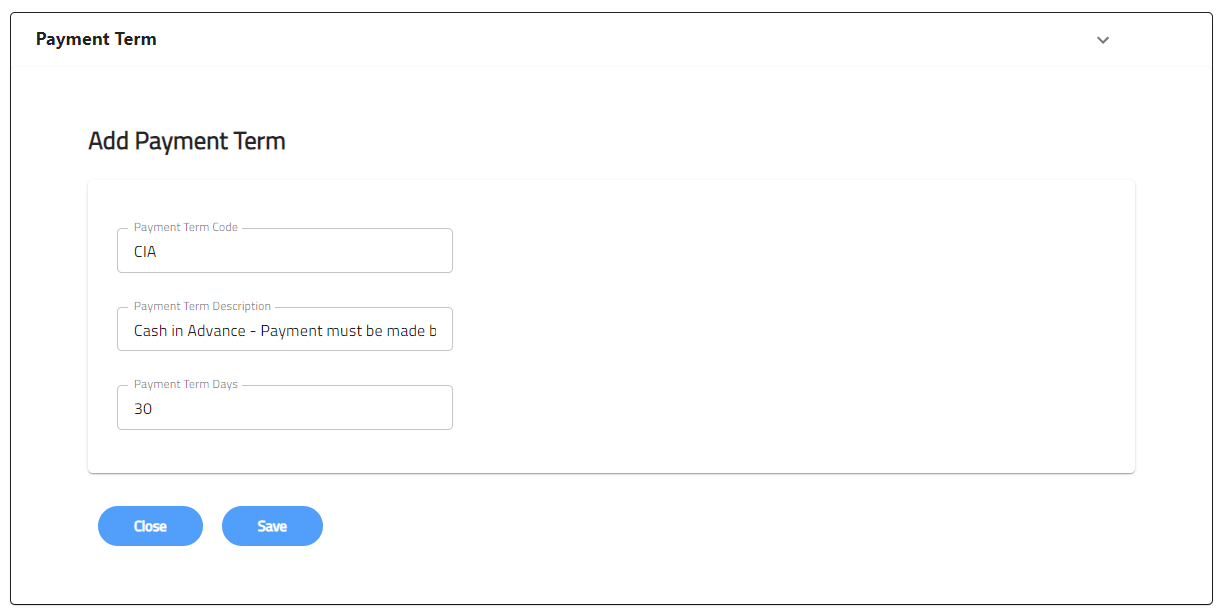
- Payment Term
- Click Add New Payment Term to add your payment term code, descriptions and days.
- Click Save after add.

2. Accounting
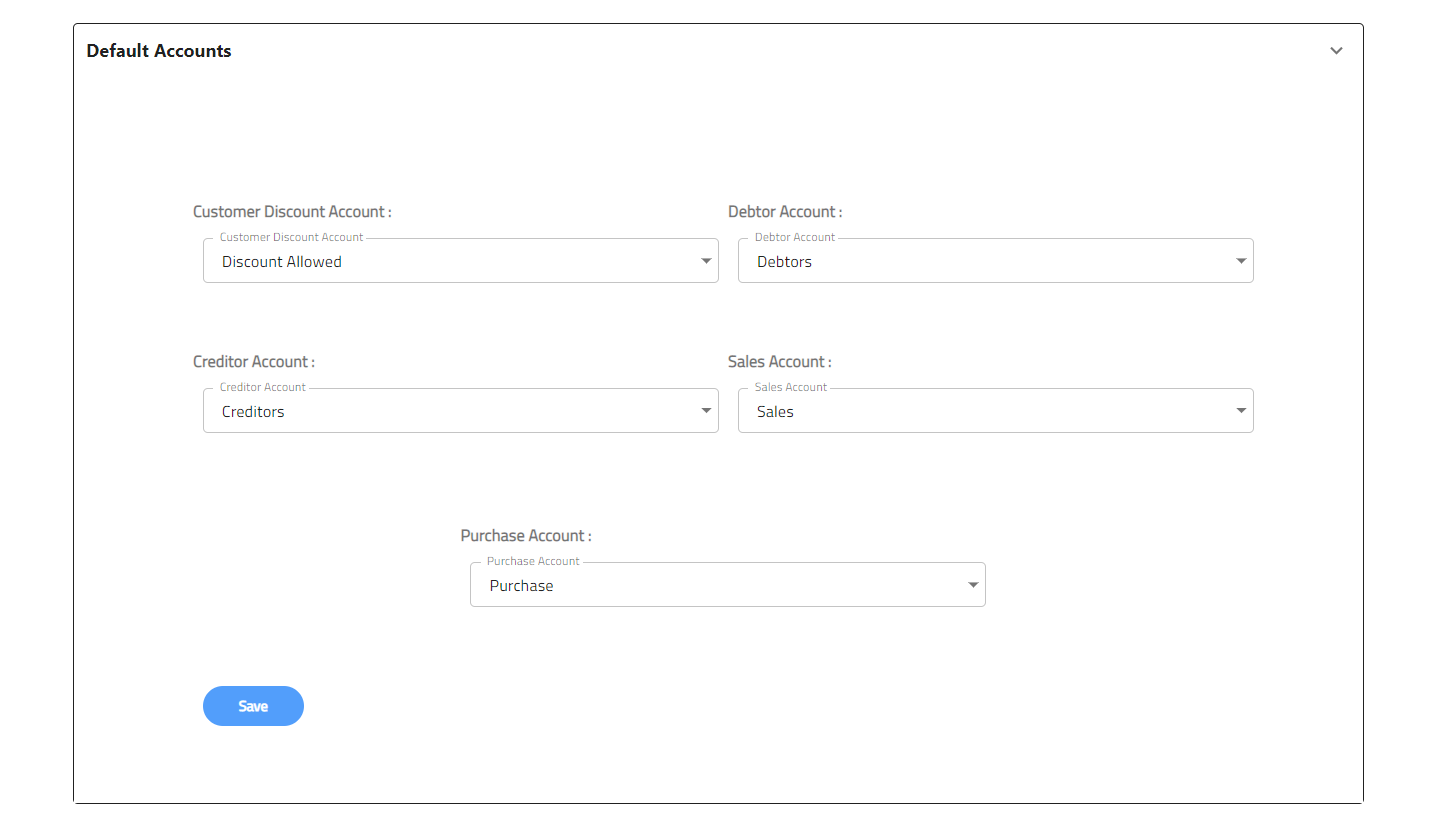
- Default Account
Set default chart of accounts for particular accounts:
Customer Discount Account – used when applying a discount on sales invoice
Debtor Account – used for trade receivable
Creditor Account – used for trade payable
Sales Account – used for default sales account when creating a product & service
- Opening Balance
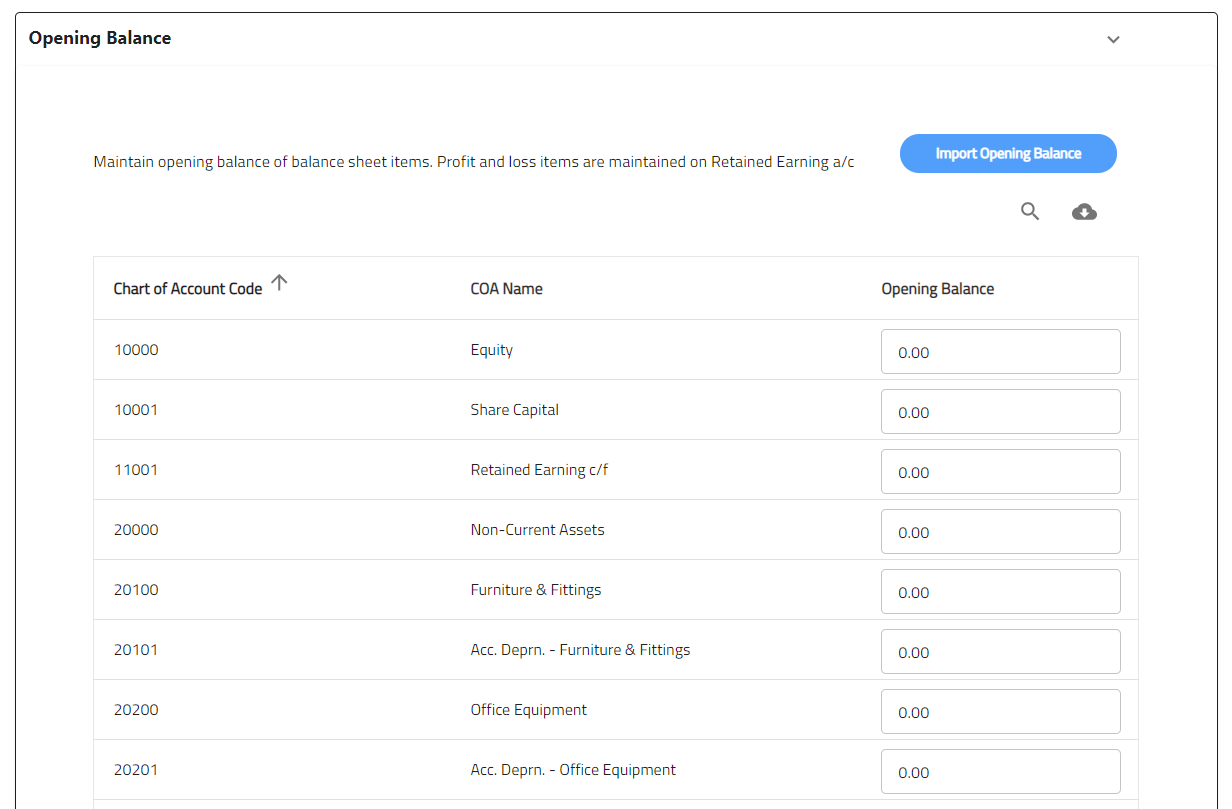
If you are migrating from another accounting system, maintain your opening balances for all chart of accounts. You can import opening balance by downloading the template then upload the file in CSV format.
- Customer Opening Balance
If you are migrating from another accounting system, maintain your opening balances for customers. You can upload customer opening balance by downloading the template then upload the file in CSV format.

- Supplier Opening Balance
If you are migrating from another accounting system, maintain your opening balances for suppliers. You can upload supplier opening balance by downloading the template then upload the file in CSV format.
