
General Info
Product and services shows list of product and/or services that your business sells. You may add and manage the product and services here. All items will be used when creating invoices, purchase orders and other related transactions.
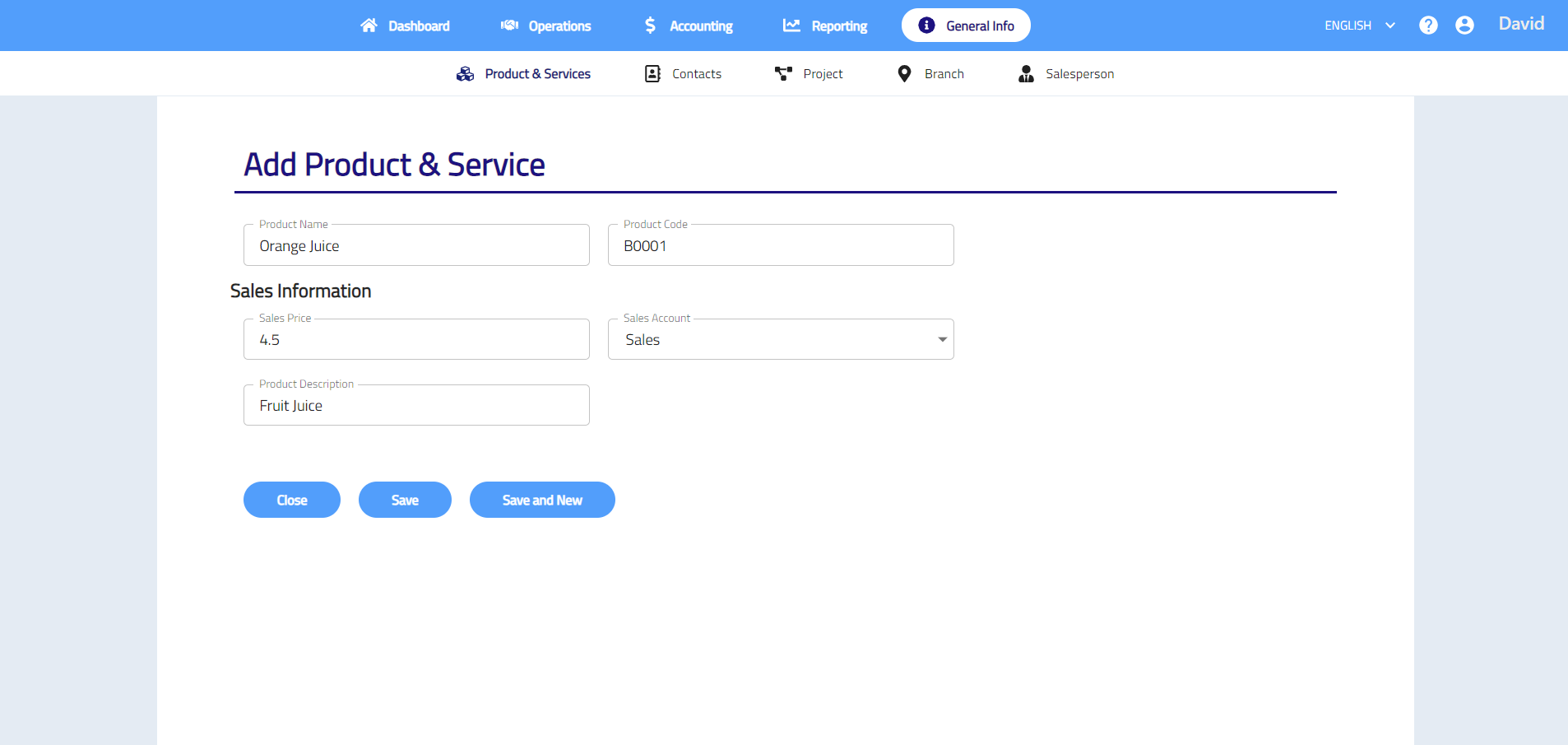
Add new product & services
- Go to General Info > Product & Services > Add New Product & Service.
- Enter product name, product code, sales price and product description and then select sales account.
- Click Save to save new product & service or click Save and New to continue adding new product and services.
Edit product & services
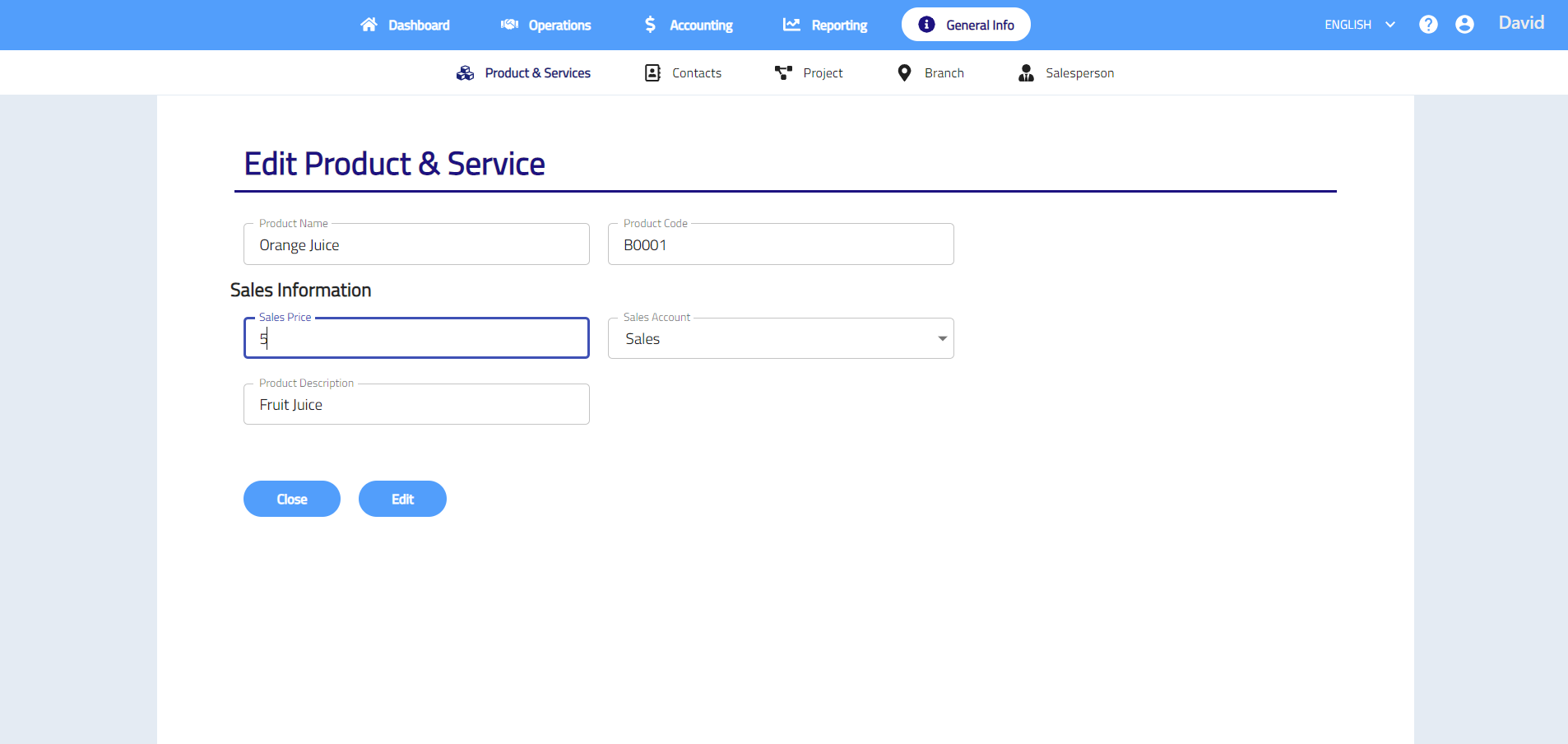
- Click on the item name that you want to edit.

- Click the field and change the details that you want to edit.
- Click Edit to save the changes.
Delete product & services
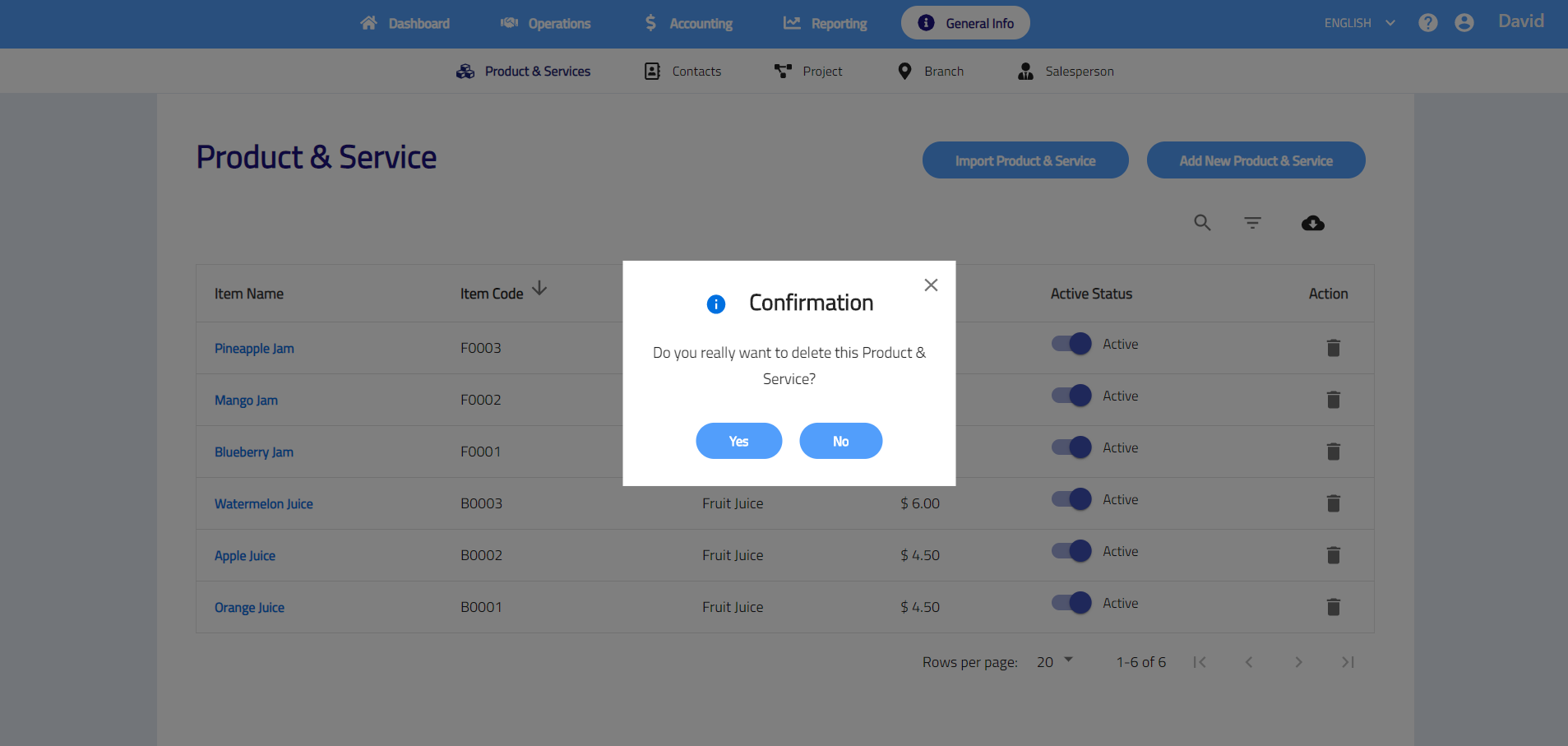
- Click on the
 .
. - Click Yes to delete.
Import product & services
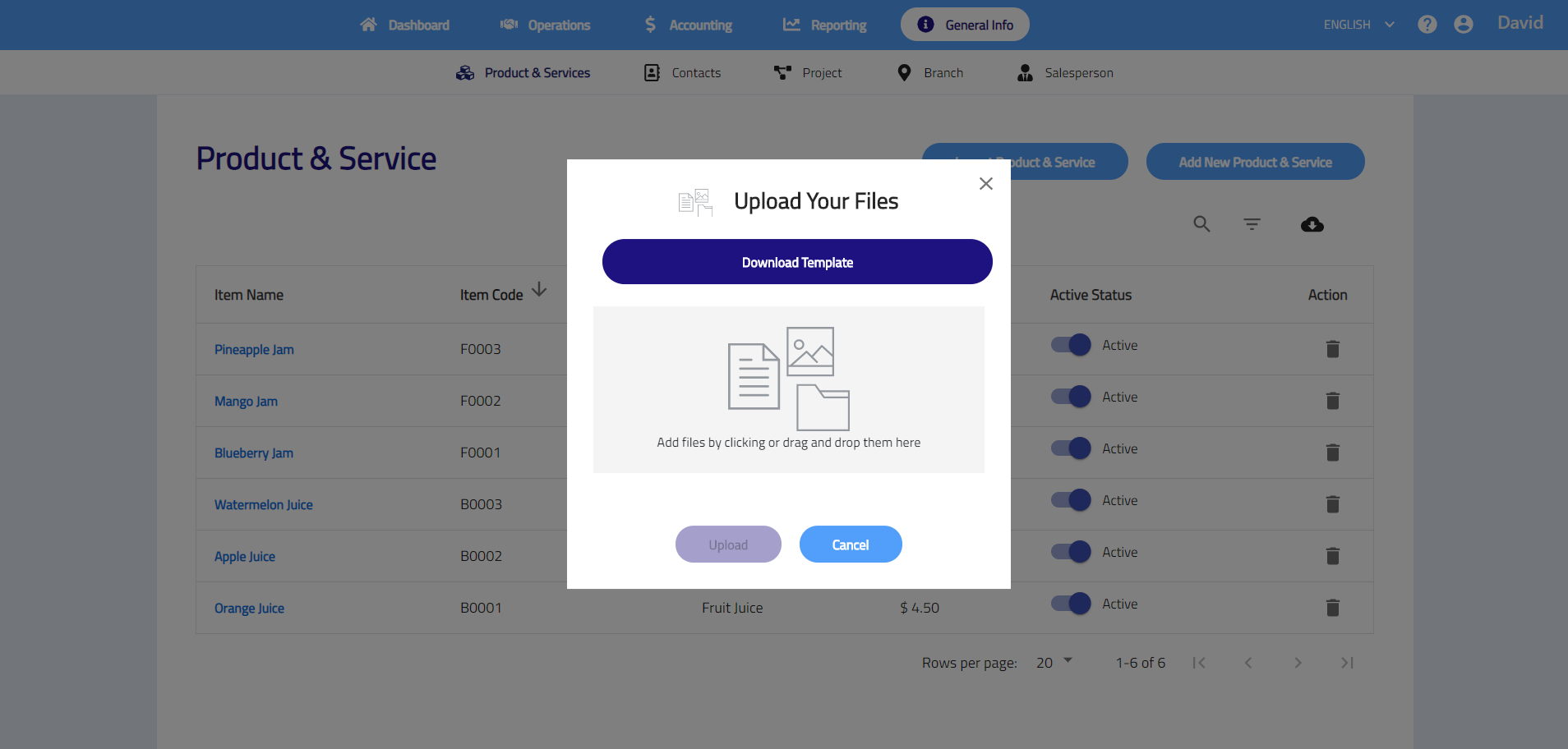
- Click on the Import Product & Service button.
- Click Download Template to download the template and enter the details by following the template given.
- Save the template in .csv(comma delimited) file and upload the file and then click Upload.
- The system will show “uploaded successfully” if data and file format are correct.
Download product & services list
Click the  to download all product and services details.
Contacts
Contacts shows list of customer and/or supplier contacts that your business has. You may import and manage the contacts in the contacts list. All contacts can be used when creating customer, supplier and cash transactions.
Add new contacts
- Go to General Info tab > Contacts tab > Add New Contacts.
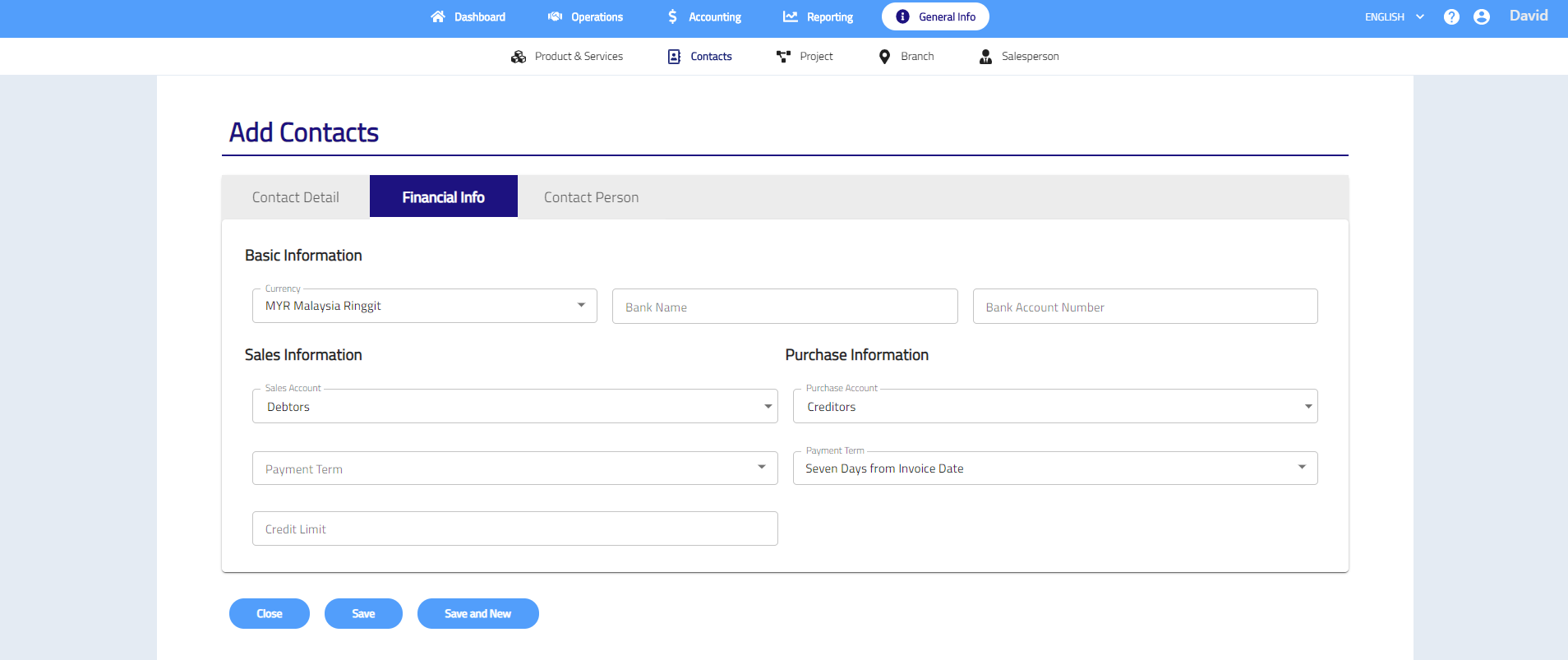
- Enter contact details, financial info and contact person.
- Click Save to save new contacts or click Save and New to continue adding new contacts.
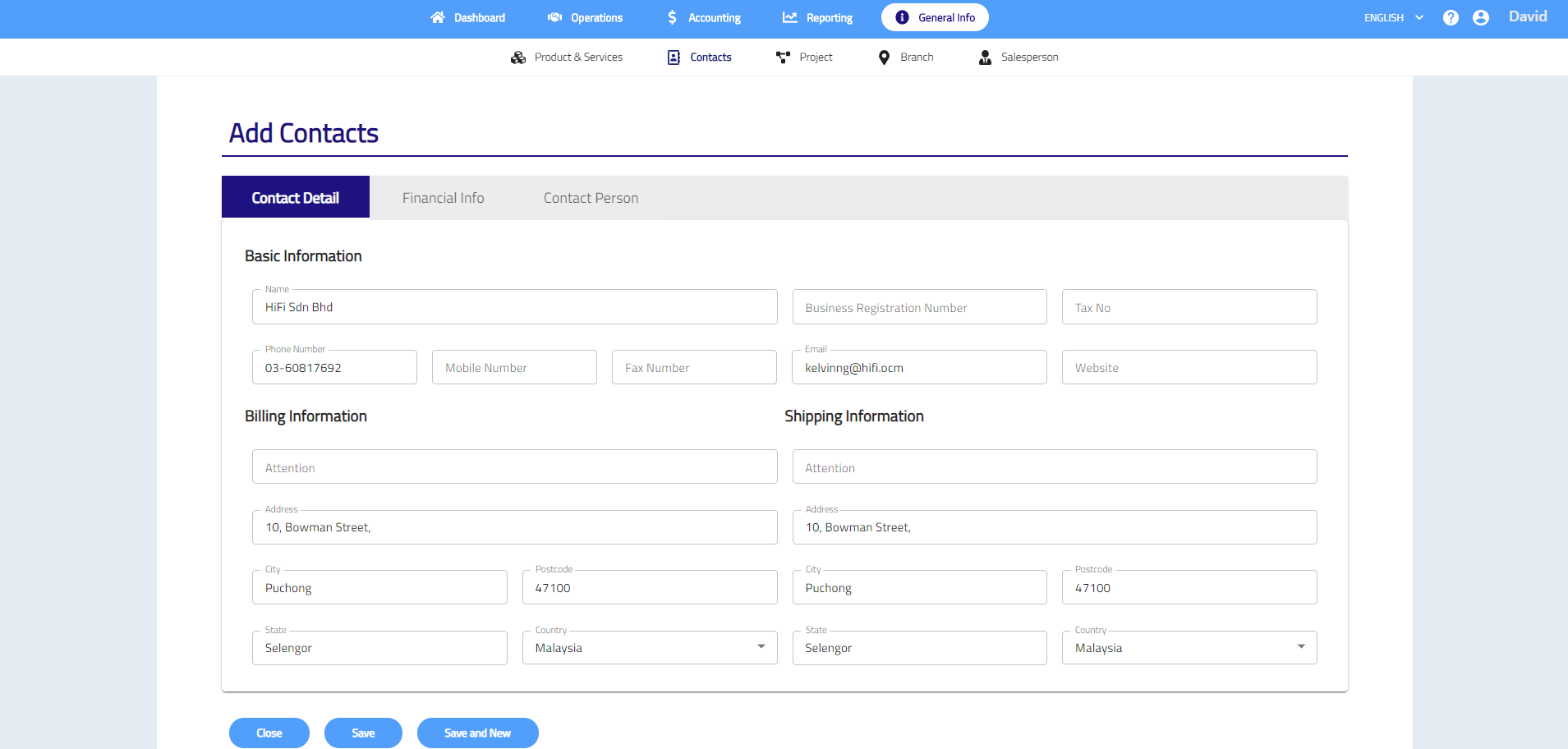

Contact Detail – Record customers or suppliers’ basic info such as company name, contact number and address.
Financial Info – Record customers or suppliers’ financial info such as bank name, bank account number and payment term.
Contact Person – Add contact person’s basic info such as name, designation, email and contact number.
Edit contacts
- Click on the contact name that you want to edit.
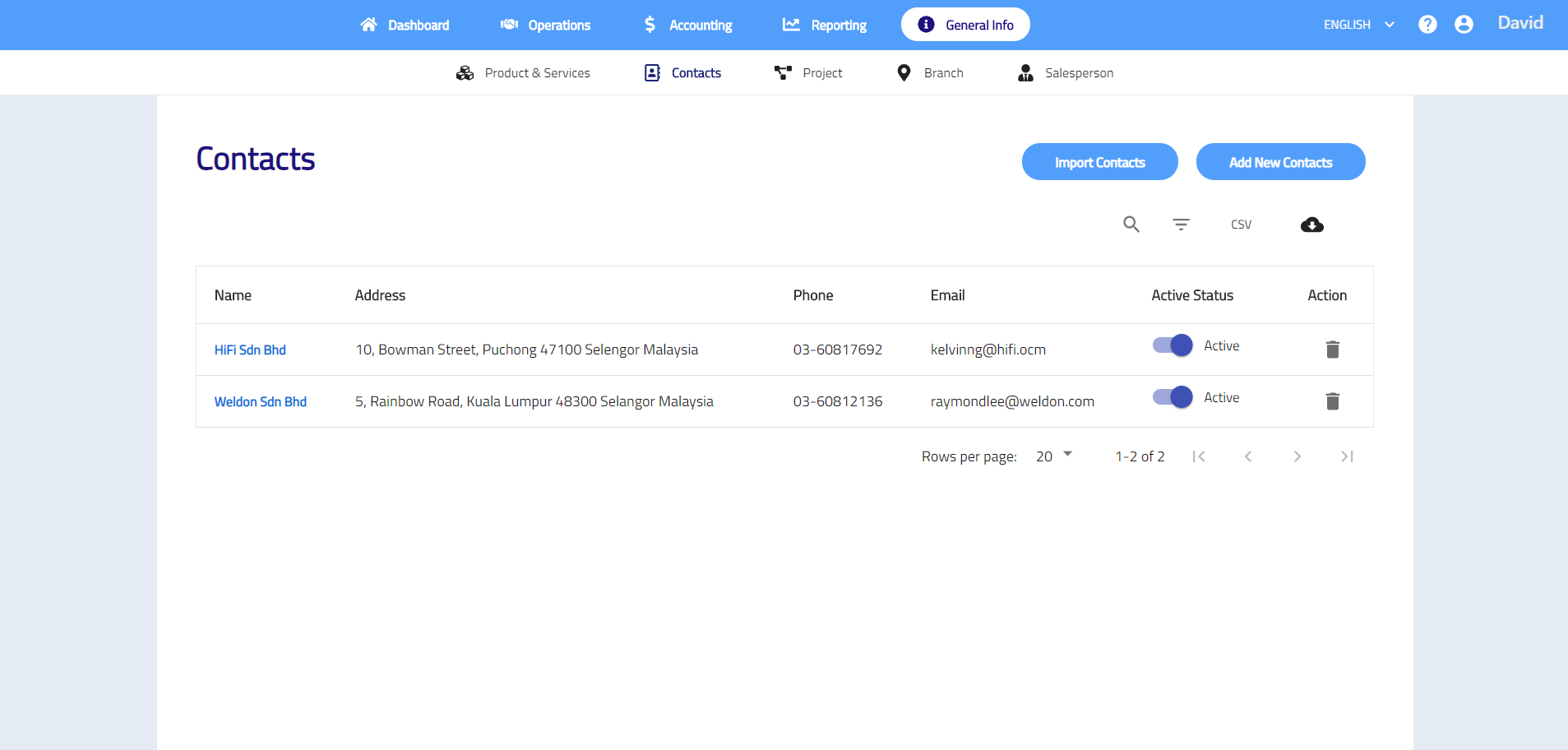
- Click the column and change the details that you want to edit.
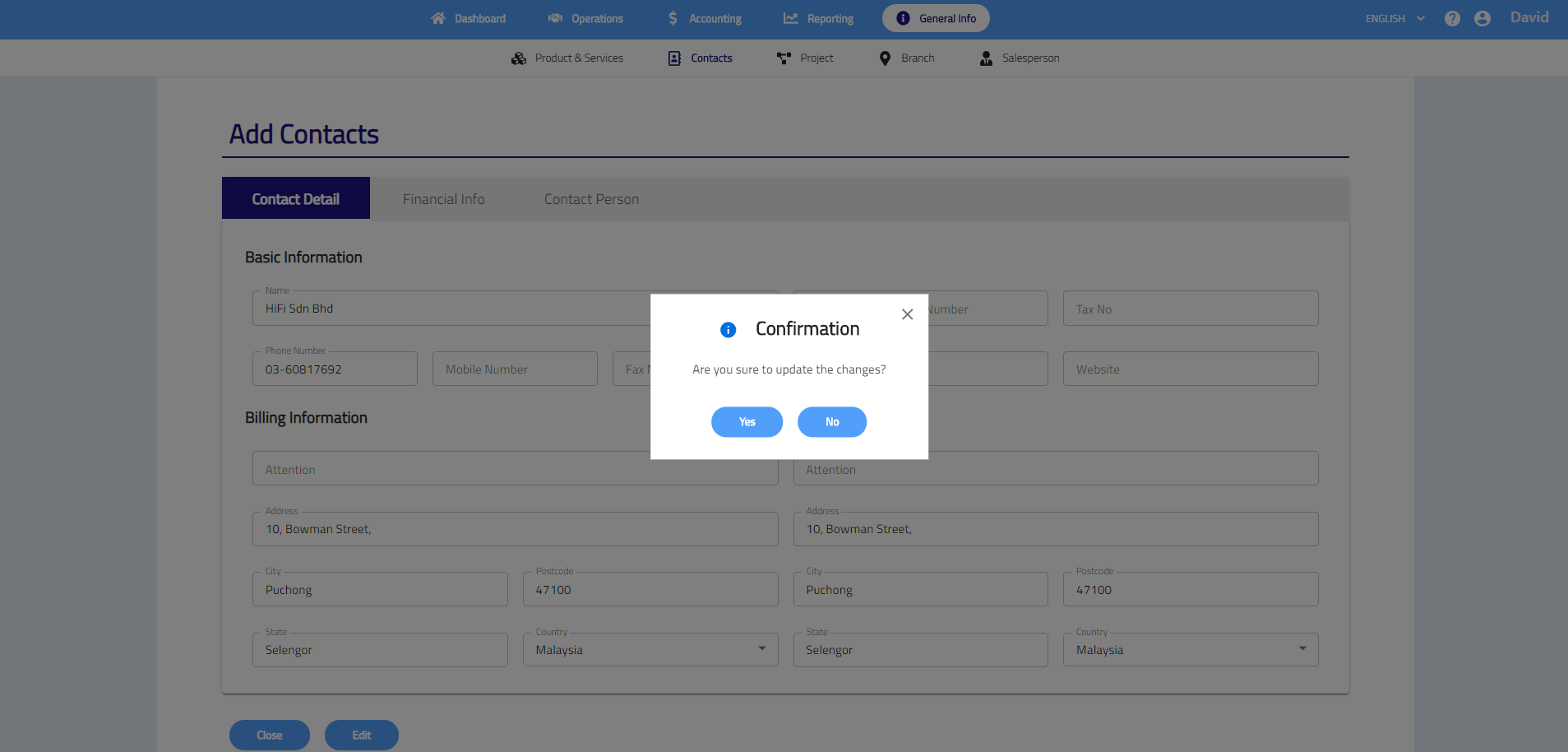
- Click Edit and click Yes to save your changes.
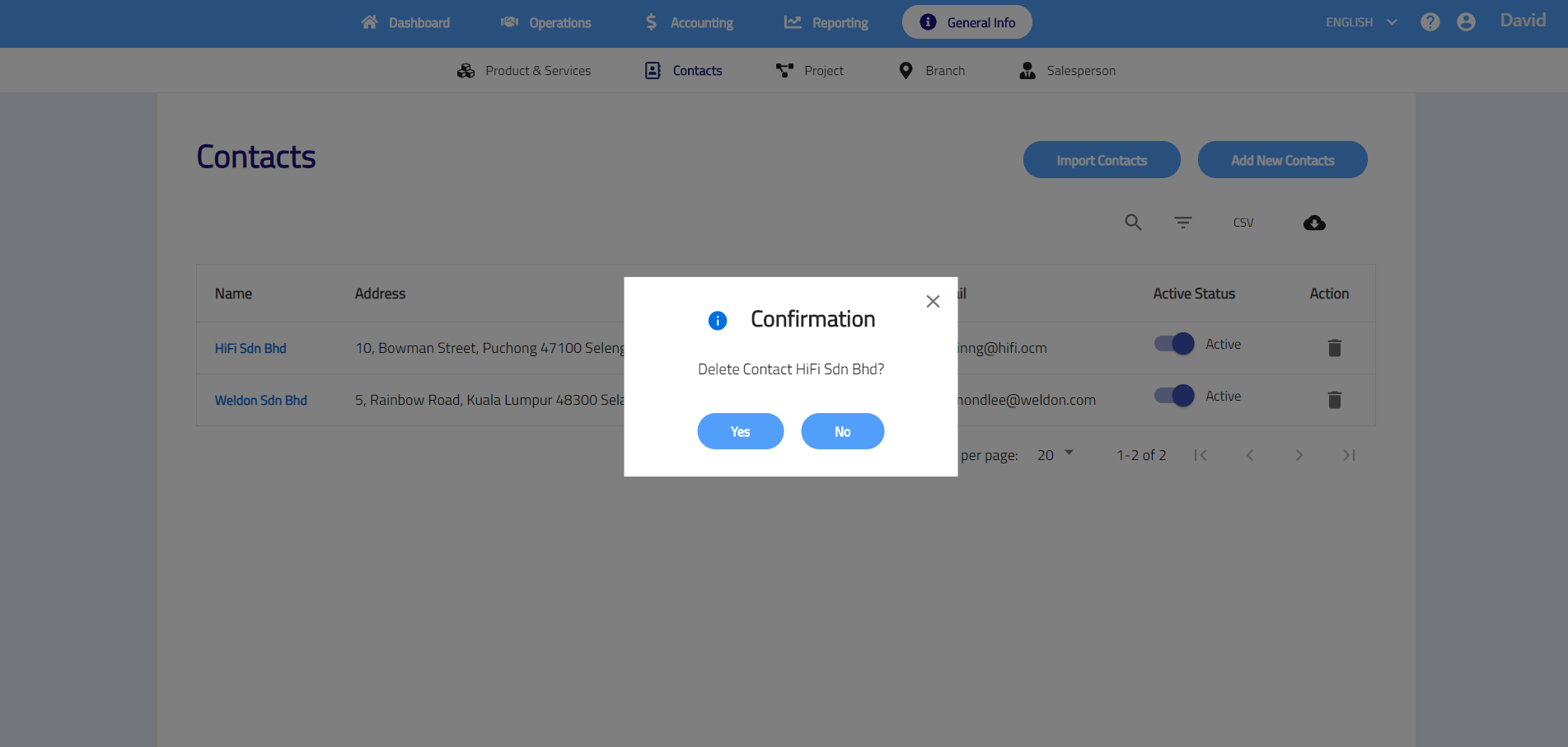
Delete contacts
- Click on the .
- Click Yes to delete.
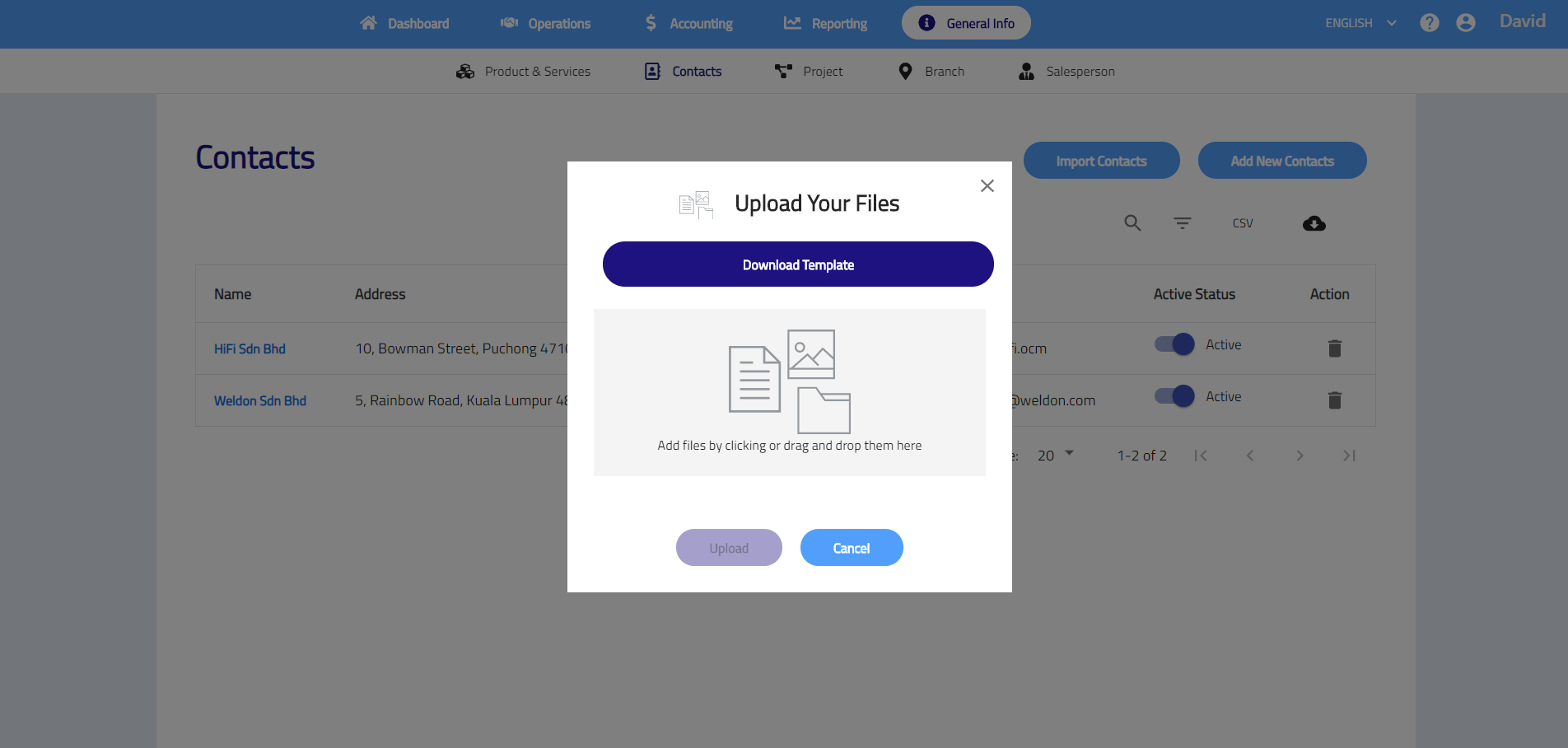
Import contacts
- Click on the Import Contacts button.
- Click Download Template to download the template and enter the details by following the template given.
- Save the template in .csv(comma delimited) file and upload the file and then click Upload.
- The system will show “uploaded successfully” if data and file format are correct.
Download contact list
Click  to download contact list in csv file or clickto dowload contact list in excel file.
Project
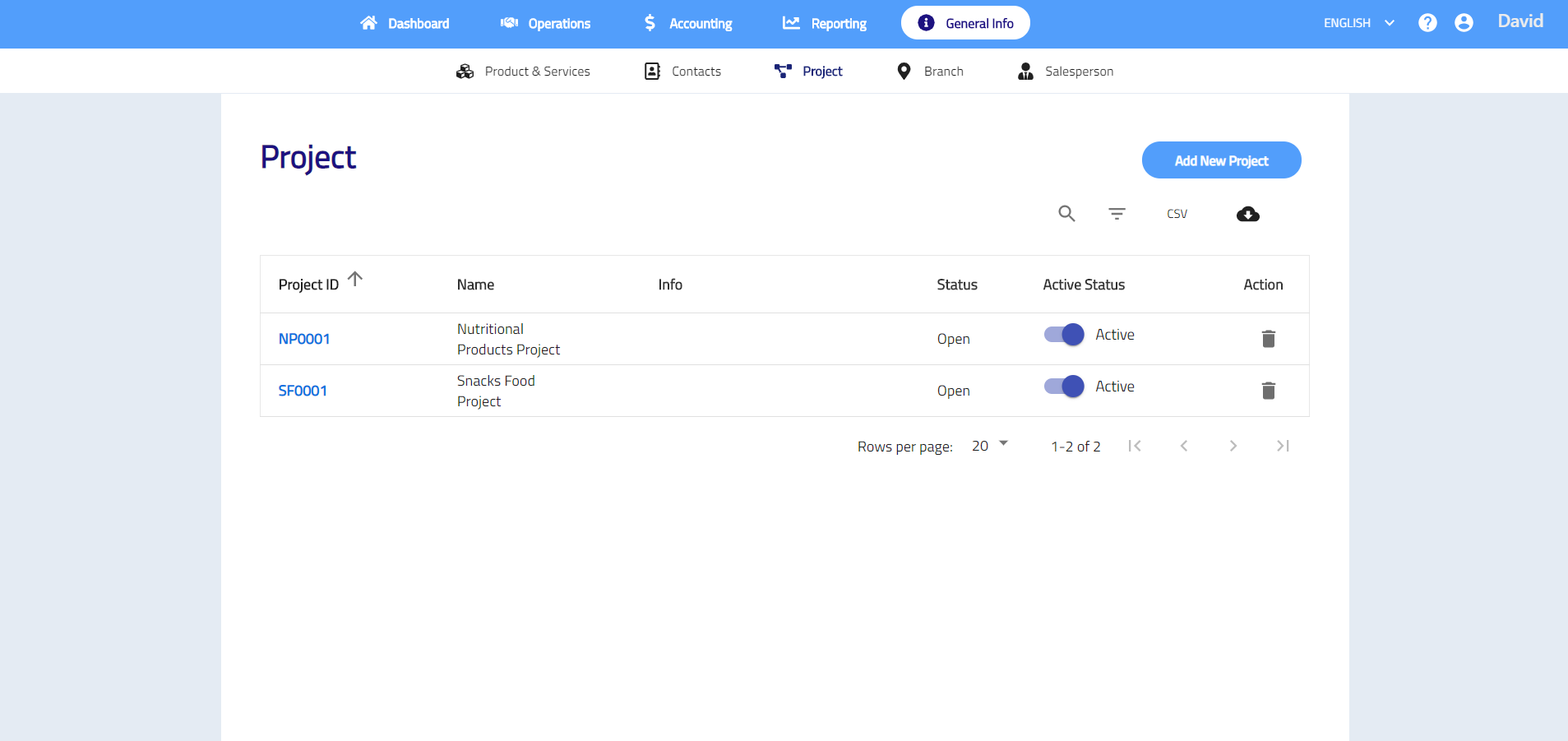
Project shows list of project that you have. You may add and manage your projects here. All projects can be used when creating any transactions.
Add new project
- Go to General Info > Project > Add New Project.
- Enter project ID and name, select status and enter info if neccesary.
- Click Save to save new project.

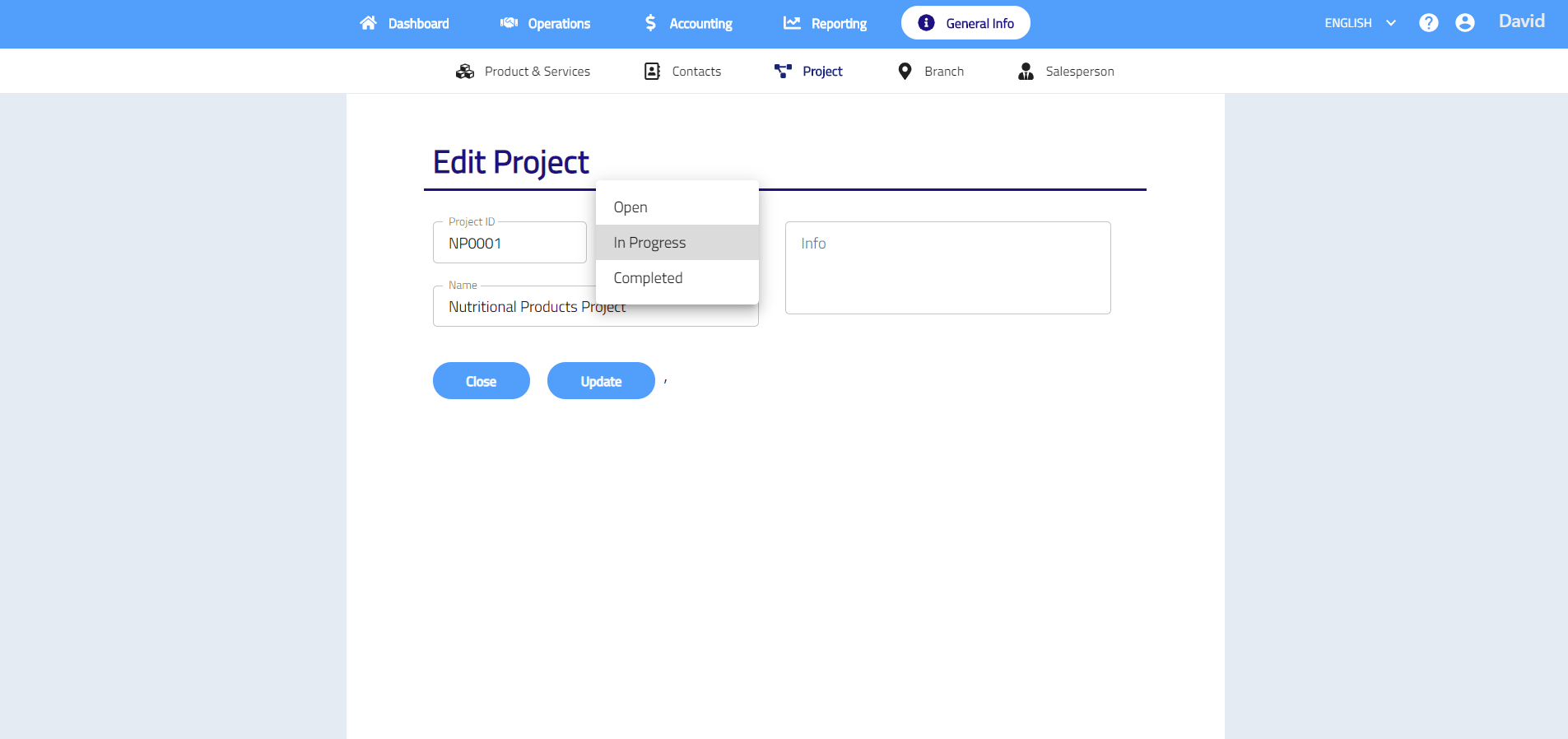
Edit project
- Click on the project ID that you want to edit.
- Click the field and change the details that you want to edit.
- Click Update button and click Yes to save your changes.
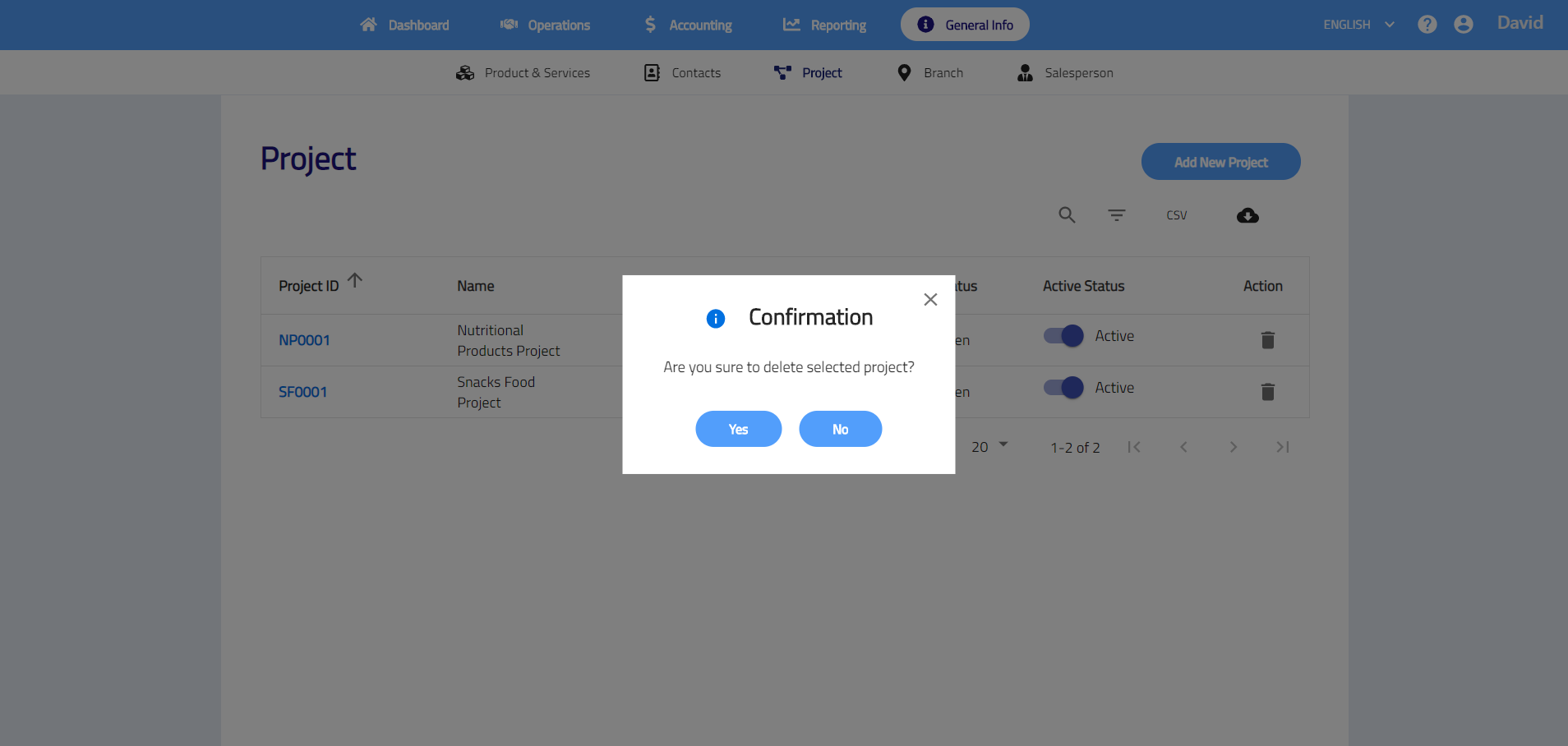
Delete project
- Click on the .
- Click Yes to delete.
Download project list
Click to download project list in csv file or clickto dowload project list in excel file.
Branch
Branch shows list of branch that you have. You may add and manage the branch here. All branches will be used when creating any transactions.
Add new branch
- Go to General Info > Branch > Add New Branch.
- Enter branch ID, name, info and description.
- Click Save to save new branch.

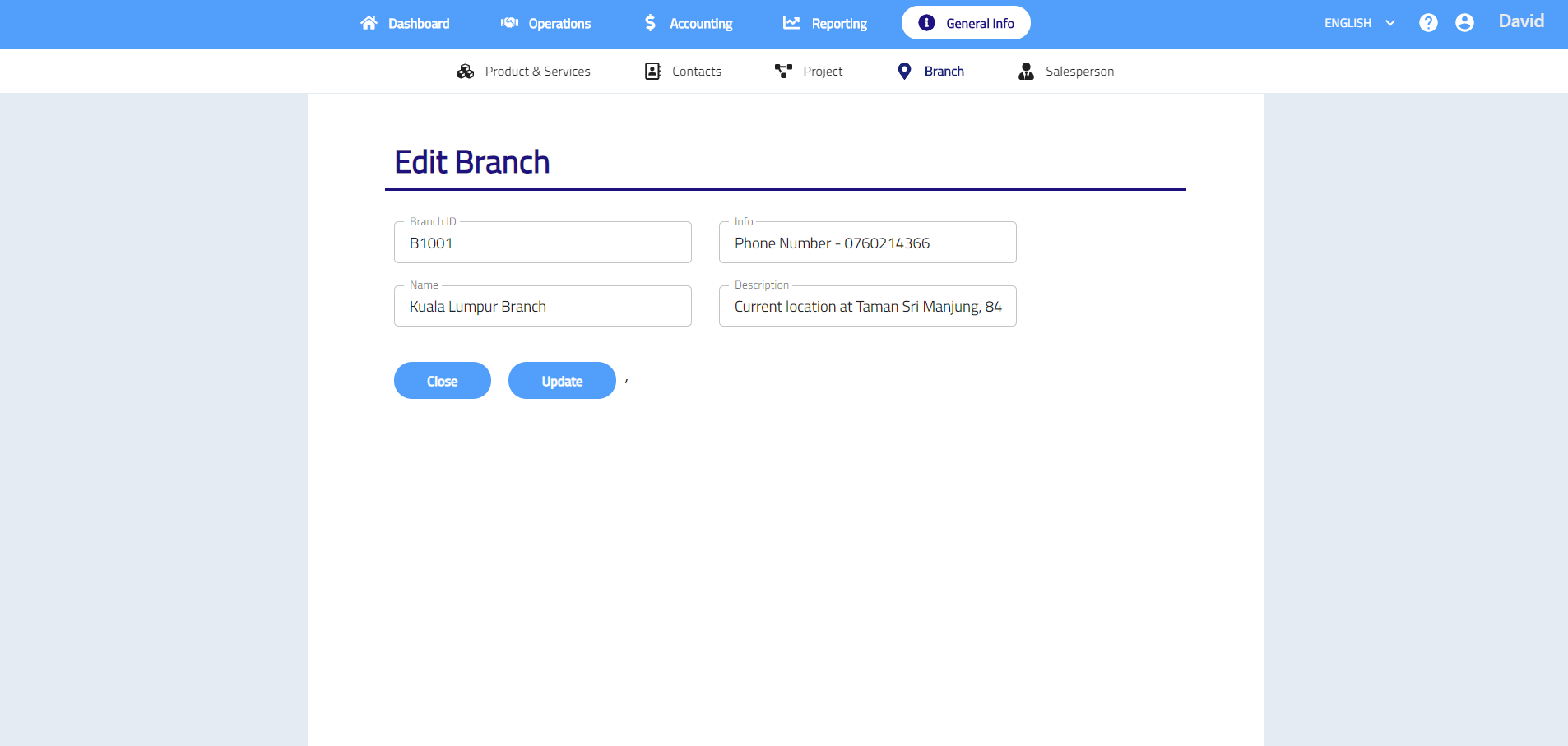
Edit branch
- Click on the branch ID that you want to edit.

- Click the field and change the details that you want to edit.
- Click Update button and click Yes to save your changes.
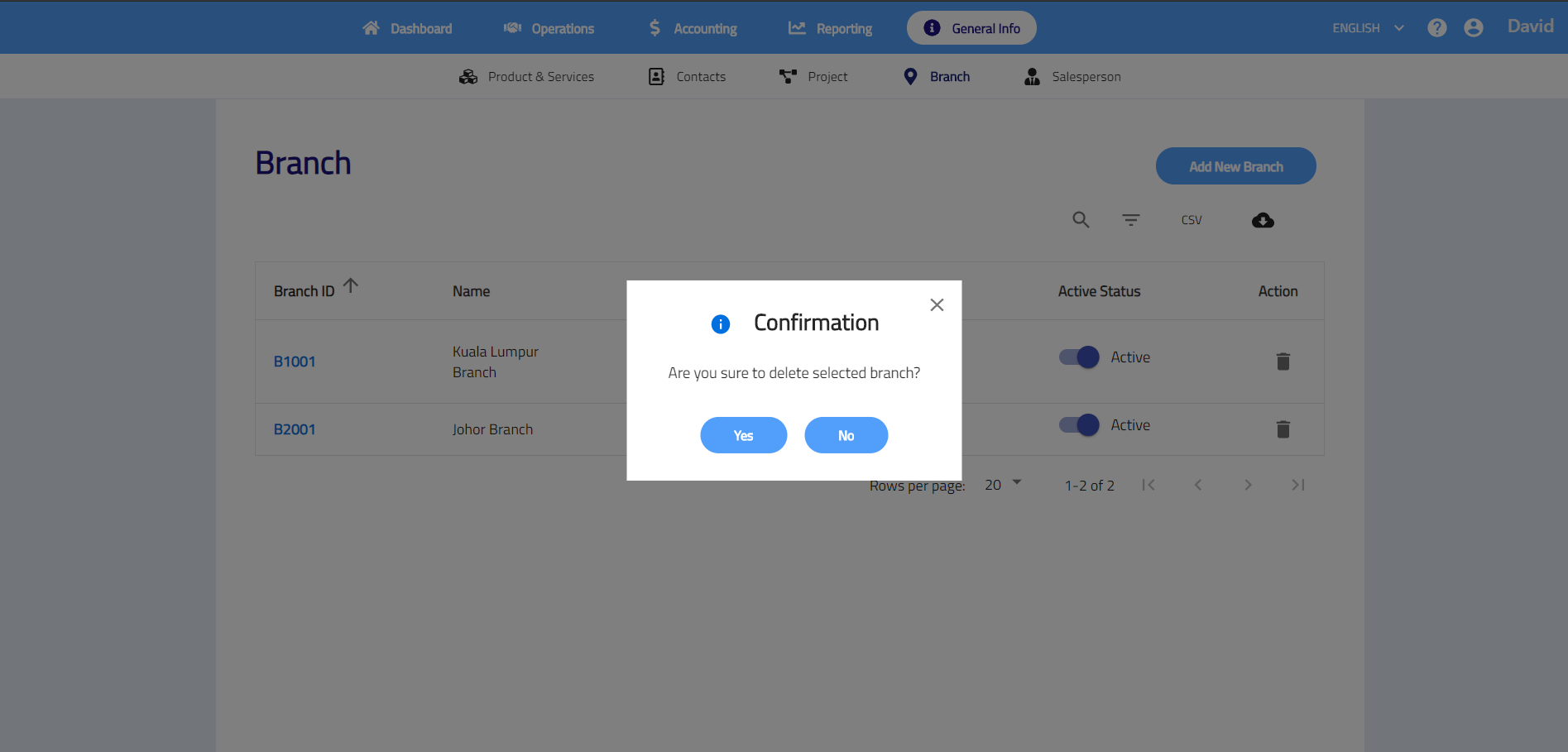
Delete branch
- Click on the .
- Click Yes to delete.
Download branch list
Click to download project list in csv file or clickto dowload project list in excel file.
Salesperson
Salesperson shows list of salesperson that you have. You may add and manage the salesperson here. All salespersons will be used when creating any transactions.
Add new salesperson
- Go to General Info > Salesperson > Add New Salesperson.
- Enter salesperson ID, name and info.
- Click Save to save new salesperson.

Edit salesperson
- Click on the salesperson ID that you want to edit.

- Click the field and change the details that you want to edit.
- Click Update button and click Yes to save edit.

Delete salesperson
- Click on the .
- Click Yes to delete.

Download salesperson list
Click to download salesperson list in csv file or clickto dowload salesperson list in excel file.